Showing posts with label linux. Show all posts

Sunday, 10 March 2013

System Monitoring for home users.

URL: http://aerokid240.blogspot.com/2012/07/system-monitoring-for-home-users.html

====================================

System Monitoring for home users.

I recently covered a system monitoring tool called icinga. Its features and capabilities are very powerful but may be overkill for a home network. In this post, i will show an alternate setup which will allow you to pull system information from networked linux machines and send then back to a central server.

Here is an overview of the pieces that make this work. We will connect to client machines over ssh, execute a local script that will retrieve system information and then send this information back to us on a custom port using netcat. I would also use a utility called expect to aid in automating everything. You can find out much more about expect from google or watch this excellent tutorial on hak5.

The script file will need to be copied to each client machine. Here are the contents of the script. Give this script file executable permissions with the chmod command. Its a modified version from this:

Filename would be sysstat.sh
#!/bin/bash
CPUTIME=$(ps -eo pcpu | awk 'NR>1' | awk '{tot=tot+$1} END {print tot}')
CPUCORES=$(cat /proc/cpuinfo | grep -c processor)
echo "
System Summary (collected on `date`)

 - CPU Cores             = `echo $CPUCORES`
 - CPU Usage (average)       = `echo $CPUTIME / $CPUCORES | bc`%
 - Memory free (real)        = `free -m | head -n 2 | tail -n 1 | awk {'print $4'}` Mb
 - Memory free (cache)       = `free -m | head -n 3 | tail -n 1 | awk {'print $3'}` Mb
 - Swap in use               = `free -m | tail -n 1 | awk {'print $3'}` Mb
 - System Uptime             = `uptime`
 - Local IPs             = `ifconfig | grep -B1 "inet addr" | awk '$1 == "inet"{ print $2}'|awk -F: '{print $2}' |grep -v "127.0.0.1"
`
 - Public IP                 = `dig +short myip.opendns.com @resolver1.opendns.com`
 - Disk Space Used           = `df -h|awk '$6 ~ /\/$/ {print $1 ": percentage used: " $5 " out of " $2 " total on " $6}'
`
################################################################
"


The expect script file's contents are as below. Give this file executable permissions afterwords with chmod:

 Filename would be ssh.exp


#!/usr/bin/expect

spawn ssh root@127.0.0.1

expect "?assword"
send "test\n"
expect "root@"
send "sleep 5\n"
expect "root@"
send "./sysstat.sh|nc -q 1 127.0.0.1 4444\n"
expect "root@"
send "echo $?\n"
expect {
"0" {send "echo 'Success !!!' \n"}
"1" {send "echo 'Something went wrong !!!' \n"}
}
send "exit\n"
interact

We will setup a netcat listener on our machine that will receive the client system information. I used ncat, a similar utility to netcat but has the -k option that will allow us to accept multiple connections instead of one.

ncat -klvp 1234

 Now, with the ncat program listening for connections, we only need to run the expect script file. This script will initiate an ssh connection with the remote client system, logs you in with the proper password, sleeps for 5 seconds , execute the sysstat.sh shell script we created, which will gather information about the system (like CPU load, RAM usage, Hard disk space, etc) and output the results to netcat. Netcat will then send this information to our ncat listener. The expect script then exits the ssh session and finishes.

Here is a sample of the output you can expect from our ncat listener|:

System Summary (collected on Tue Jul 24 18:43:53 EDT 2012)

- CPU Cores = 2
- CPU Usage (average) = 17%
- Memory free (real) = 477 Mb
- Memory free (cache) = 221 Mb
- Swap in use = 0 Mb
- System Uptime = 18:43:53 up 43 min, 4 users, load average: 0.07, 0.09, 0.12
- Local IPs = 192.168.2.15
- Public IP = 123.45.678.90
- Disk Space Used = /dev/sda5: percentage used: 41% out of 39G total on $6
################################################################
Resources / Good reading:
question-defense.com
hak5.org: expect tutorial
thegeekstuff.com

Monday, 27 February 2012

HVA - Cài đặt Apache hỗ trợ SSL/TLS

Bước đầu tiên để cài đặt phần mềm Apache có hỗ trợ SSL/TLS là cấu hình và cài đặt Apache 2. Tạo ra một người dùng và một nhóm được đặt tên là “apache”
Code:

groupadd apache

Code:
useradd apache

Việc tiếp theo cần làm đó là cấu hình apache.

./configure \
--prefix=/usr/local/apache2 \
--with-mpm=prefork \
--enable-ssl \
--disable-charset-lite \
--disable-include \
--disable-env \
--disable-status \
--disable-autoindex \
--disable-asis \
--disable-cgi \
--disable-negotiation \
--disable-imap \
--disable-actions \
--disable-userdir \
--disable-alias \
--disable-so


Sau khi đã cấu hình và cài đặt Apache thành công ta có thể tiếp tục tuỳ chỉnh 1 vài thay đổi trên Apache nhằm tối ưu vấn đề tốc độ và tính an toàn

- tạo 1 trang web mẫu để phục vụ cho việc Test

Code:
 umask 022
 mkdir /www
 echo " \ 
 Test works." > /www/index.html
 chown -R root:sys /www 


- tuỳ chỉnh file cấu hình Apache (trong trường hợp này là /usr/local/apache2/conf/httpd.conf )
Code:
 # =================================================
 # Basic settings
 # =================================================
 User apache
 Group apache
 ServerAdmin <a href="mailto:webmaster@www.seccure.lab">webmaster@www.seccure.lab</a> 
 ServerName www.seccure.lab
 UseCanonicalName Off
 ServerSignature Off
 HostnameLookups Off
 ServerTokens Prod
 ServerRoot "/usr/local/apache2"
 DocumentRoot "/www"
 PidFile /usr/local/apache2/logs/httpd.pid
 ScoreBoardFile /usr/local/apache2/logs/httpd.scoreboard
 
         DirectoryIndex index.html
 
 
 # =================================================
 # HTTP and performance settings
 # =================================================
 Timeout 300
 KeepAlive On
 MaxKeepAliveRequests 100
 KeepAliveTimeout 30
 
         MinSpareServers 5
         MaxSpareServers 10
         StartServers 5 
         MaxClients 150 
         MaxRequestsPerChild 0
 
 
 # =================================================
 # Access control
 # =================================================
 
         Options None 
         AllowOverride None 
         Order deny,allow 
         Deny from all
 
 
         Order allow,deny 
         Allow from all
 
 
 # =================================================
 # MIME encoding
 # =================================================
 
         TypesConfig /usr/local/apache2/conf/mime.types
 
 DefaultType text/plain
 
         AddEncoding x-compress                 .Z 
         AddEncoding x-gzip                     .gz .tgz 
         AddType application/x-compress         .Z 
         AddType application/x-gzip             .gz .tgz 
         AddType application/x-tar              .tgz 
         AddType application/x-x509-ca-cert     .crt 
         AddType application/x-pkcs7-crl        .crl
 
 
 # =================================================
 # Logs
 # =================================================
 LogLevel warn
 LogFormat "%h %l %u %t \"%r\" %>s %b \"%{Referer}i\" \"%{User-Agent}i\"" combined
 LogFormat "%h %l %u %t \"%r\" %>s %b" common
 LogFormat "%{Referer}i -> %U" referer
 LogFormat "%{User-agent}i" agent
 ErrorLog /usr/local/apache2/logs/error_log
 CustomLog /usr/local/apache2/logs/access_log combined
 CustomLog logs/ssl_request_log \
 "%t %h %{HTTPS}x %{SSL_PROTOCOL}x %{SSL_CIPHER}x \
 %{SSL_CIPHER_USEKEYSIZE}x %{SSL_CLIENT_VERIFY}x \"%r\" %b"
 
 # =================================================
 # SSL/TLS settings
 # =================================================
 Listen 0.0.0.0:443
 
 SSLEngine on
 SSLOptions +StrictRequire
 
 
         SSLRequireSSL
 
 
 SSLProtocol -all +TLSv1 +SSLv3
 SSLCipherSuite HIGH:MEDIUM:!aNULL:+SHA1:+MD5:+HIGH:+MEDIUM
 
 SSLMutex file:/usr/local/apache2/logs/ssl_mutex
 
 SSLRandomSeed startup file:/dev/urandom 1024
 SSLRandomSeed connect file:/dev/urandom 1024
 
 SSLSessionCache shm:/usr/local/apache2/logs/ssl_cache_shm
 SSLSessionCacheTimeout 600
 
 SSLPassPhraseDialog builtin
 SSLCertificateFile /usr/local/apache2/conf/ssl.crt/server.crt
 SSLCertificateKeyFile /usr/local/apache2/conf/ssl.key/server.key
 SSLVerifyClient none
 SSLProxyEngine off
 
 
         AddType application/x-x509-ca-cert      .crt 
         AddType application/x-pkcs7-crl         .crl
 
 
 SetEnvIf User-Agent ".*MSIE.*" \ 
     nokeepalive ssl-unclean-shutdown \ 
     downgrade-1.0 force-response-1.0 


- khởi tạo thư mục chứa private key

mkdir /usr/local/apache2/conf/ssl.key
mkdir /usr/local/apache2/conf/ssl.crt
mkdir /usr/local/apache2/conf/ssl.crl


OK

Tiếp theo chúng ta tiếp tục tào 1 self-signed certificate ( certificate chỉ danh cho việc Test, các certificate thực các bạn phải mua ). Phương thức này được đưa ra chỉ để tiếp tục quá trình kiểm tra của chúng ta, hoặc dùng trong môi trường nhỏ. Để web browser có thể nhận dạng được web server chứng chỉ tự kí phải được cài đặt vào mọi web browser cần truy cập web server đó


openssl req \
-new \
-x509 \
-days 30 \
-keyout /usr/local/apache2/conf/ssl.key/server.key \
-out /usr/local/apache2/conf/ssl.crt/server.crt \
-subj '/CN=Test-Only Certificate'


Với việc cấu hình như trên chúng ta đã tạo ra 1 Certicate X509 có thời hạn là 30 ngày. Cặp khoá public/private sẽ được sinh ra trong sever.key và server.crt. Mặc đinh thuật toán mã hoá sẽ được sử dụng là RSA 1024 bit. Chúng ta có thể tuỳ chỉnh tham số này bằng việc thêm
Code:
 -newkey rsa:1024
 

vào file cấu hình

Giờ chúng ta đã có thể Start dịch vụ rồi
Code:
 /usr/local/apache2/bin/apachectl startssl
 

và kết quả trả về
Code:
 Apache/2.0.52 mod_ssl/2.0.52 (Pass Phrase Dialog)
 Some of your private key files are encrypted for security reasons.
 In order to read them you have to provide us with the pass phrases.
 
 Server 127.0.0.1:443 (RSA)
 Enter pass phrase:*************
 
 Ok: Pass Phrase Dialog successful. 
 
 [/code/
 
 Trong quá trình cài đặt và chạy thử nghiệm nếu gặp lỗi chúng ta có thể sử dụng 
chức năng [b]s_client[/b] có sẵn trong mod_ssl. Đây là 1 chức năng khá hay và 
có nhiều tuỳ chọn hữu ích. Chẳng hạn như tắt/mở (on/off) một giao thức cụ thể 
(-ssl2 , -ssl3, -tls1). 
 [code]
 /usr/bin/openssl s_client -connect localhost:443 
 

Sau đó khởi động lại Apache và kiểm tra các file đăng nhập (/usr/local/apache2/logs/) để có thêm thông tin và từ đó xác đinh nguyên nhân

Cheer

Tuesday, 7 February 2012

Cài đặt FreeBSD

FreeBSD_logo I/ Giới thiệu chung
FreeBSD là một hệ điều hành kiểu Unix được phát triển từ Unix theo nhánh phát triển của BSD dựa trên 386BSD và 4.4BSD. Nó có khả năng chạy trên các bộ vi xử lý tương thích với họ vi xử lý x86 của Intel, cũng như trên các máy DEC Alpha, các bộ xử lý UltraSPARC của Sun Microsystems, các bộ xử lý Itanium (IA-64) và AMD64. Khả năng hỗ trợ cho kiến trúcPowerPC đang được phát triển. FreeBSD thường được đánh giá cao nhờ vào tính tin cậy và mạnh mẽ của nó.
Các bạn có thể tìm hiểu chi tiết về freeBSD theo link sau: http://vi.wikipedia.org/wiki/FreeBSD

II/ Cài đặt:
1/ Bộ cài đặt:
Chúng ta có thể tải bộ cài đặt freeBSD theo link sau. Hoặc tìm những phiên bản mới hơn ở http://www.freebsd.org/where.html
2/ Cài đặt:
Dùng VMware tạo một máy ảo mới, sau khi chỉnh những thông số cần thiết, chúng ta được máy ảo có cấu hình như sau:
Install_BSD_1
Mở nguồn nào Open-mouthed smile.
Đợi một tí chúng ta sẽ tới màn hình cài đặt sau. Chọn Skip kernel configuration and continue with installation để cài đặt
Install_BSD_2
Chọn Standard
Install_BSD_3
Install_BSD_4
Trong FDISK Partition Editor, bấm C tạo ổ đĩa cài đặt mới
Install_BSD_5
Để mặc định 165
Install_BSD_6
Sau đó chọn Q để thoát. Tiếp theo chọn BootMgr để tạo phân vùng mới và thiết lật khởi động
Install_BSD_7
Trong FreeBSD Disklabel Editor, bấm C để tạo mới. Cứ như thế chúng ta lần lượt tao các  phân vùng cần thiết cho hệ thống
Install_BSD_8
Install_BSD_9
Install_BSD_10
Sau khi tạo các phân vùng cần thiết(như hình), bấm Q hoàn tất.
Install_BSD_11
Tiến hành cài đặt từ CD.
Install_BSD_12
Đợi một lát cho quá trình cài đặt tiến hành:
Install_BSD_13
Xong
Install_BSD_14
Hệ thống yêu cầu chúng ta thiết lập một số thông số cần thiết. Đầu tiên là Network devices.
Install_BSD_15
Chọn card mạng em0 để cấu hình. Ở đây có 2 card em0 và em1 vì lúc đầu mình đã chọn máy ảo có 2 card mạng là VM2 và VM3.
Install_BSD_16
Bước cấu hình card mạng.
Install_BSD_17
Nếu bạn lỡ tay bỏ qua bước này cũng ko sao, chúng ta có thể làm lại ở bước cuối cùng hoặc có thể chỉnh sau khi đăng nhập hệ thống. Open-mouthed smile.
Sau đó hệ thống sẽ tiếp tục hỏi ta những Option khác, tùy mục đích mà có thể chọn Yes hay No.
Chọn Yes để tạo một User khác user root trên hệ thống
Install_BSD_18
Install_BSD_19
Nhập tên user, password chú ý đánh cẩn thận vì chỉ đánh một lần.
Install_BSD_20
Chọn Ok để thoát. Sau đó hệ thống yêu cầu tạo password cho user Root.
Install_BSD_21
Gõ password 2 lần.
Install_BSD_22
Đây là bước cuối cùng, một cửa sổ hiện ra yêu cầu bạn xác nhận những tùy chọn ở trên, nếu các bạn muốn chỉnh lại ở bước nào, có thể chọn yes để quay về menu Config các dịch vụ và chọn No để thoát.
Install_BSD_23
Chọn Exit Install.
Install_BSD_24
Hệ thống sẽ khởi động lại. Lần đâu tiên khỏi động, có thể rất lâu vì các dịch vụ mặc định của hệ thống sẽ khởi động theo, đặc biệt là cái sendmail. Mình sẽ hướng dẫn các bạn một mẹo nhỏ để tiết kiệm thời gian chờ đợi này nha. Open-mouthed smile
Install_BSD_25
III/ Cấu hình cơ bản
Sau khi đăng nhập xong bằng user root, chúng ta sẽ tiến hành những bước cấu hình cơ bản sau:
-  Thiết lập IP và các dịch vụ khởi động cùng hệ thống
Nếu lúc cài đặt bạn quên cấu hình IP của card mạng, phải đợi lâu khi khởi động,đừng lo lắng chúng tao có thể sửa lại bằng cách sửa lại file rc.conf nằm ở thư mục /etc
vi /etc/rc.conf
Đây là file ban đầu trước khi sửa.
Install_BSD_26
Và sau khi sửa Open-mouthed smile. Chúng ta có thể khởi động lại máy và cảm nhận được sự khác biệt rồi đó.
Install_BSD_27
Về chuyện đặt ip, chúng ta còn có cách khác là dùng lệnh sau:
ifconfig <interface name> inet <Ip can dat>
Ví dụ ở đây mình đặt ip cho interface có tên là em0 như sau
ifconfig em0 inet 172.16.0.2/16
Sau khi đặt ip xong, ta dùng lệnh
/etc/netstart restart
để khởi động lại dịch vụ và giúp cho thiết lập của chúng ta đc áp đặt.

Search windows open shares with python


It’s rare during a penetration test that I actually exploit a vulnerability to gain more information. Newcomers to my filed will often use the term “network security”. I don’t care about the network, have the network for all I care. What I’m more concerned about is the information inside the network. The better way to describe it is “information security”. Performing penetration tests one has to keep that in mind, yea it’s fun to exploit some user that’s running an old version of war-ftp but if that user doesn’t yield sensitive information then who cares to some extent.
I often see that professional penetration testers will highlight an open windows share that can be read or written to by everyone. They will often highlight other shares that are accessible by a large group such as Authenticated users. I don’t want to scoff at these types of open shares as they should be investigated by the business owner that created the open shares. The main thing to consider is what information lies within those open shares. Open shares are usually created for a reason, so that users easily share information. This is not bad unless the information in those shares is secret / classified material. To check for this possible sensitive information one would have to search all the files and folders in that share. Now you can use the cute little dog search feature inside of windows explorer to look for this information but using that your hands are somewhat tied. The search feature inside windows explorer actually does a nice job but if you wanted to automate the process to look at multiple shares and search for multiple terms then you’re out of luck. Because of this I wanted to script something that would automate the process. Powershell could have been an option but because I’m already familiar with python I stuck to what I know. This means that in order to run the script you’ll have to have python installed on windows. I could have written the script to work in Linux but that would have meant using cifs to map drives which seemed like more of a headache then just using python on windows.
You’ll need to open up a windows command prompt to run the script and it’s a good idead to add Python to the windows path. So the script takes two arguments. The first argument is the file containing all the shares that you want to search. The second argument is the file that contains all the terms you want to search for. So to run the script you would issue a command similar to below, where searchShares.py is the name of the python script.
python.exe  searchShares.py  shares.txt  searchTerms.txt
Your shares.txt file should look similar to below.
\\one\two
\\three\four\five
\\six\seven\eight\nine
Your searchTerms.txt file should look similar to below.
secret
password
username
In the example above the term “secret” will be recursively searched in all three shares. Then “password” will be recursively searched in all three shares, then so on and so on. The script will output any file, file name, or folder name that matches any of the search terms. Currently the script will read each file in binary format which means if it comes across a word document file (such as document.doc) it doesn’t open / read the file like microsoft word would. The current script reads each line of the binary file looking for your search term. Reading a text file as binary seems to work fine but reading in microsoft office documents as binary have different results. One thing I’ve noticed in my testing is that generally speaking it does just fine searching through a *.doc file but has trouble searching through a *.docx file. Binary searching is not ideal but it’s my current solution. Python has the capability to open microsoft office documents in a more native format but for my first go round I haven’t implemented that solution.
Once you run the script you will see output similar to below.
C:\temp>python searchShares.py shares.txt searchTerms.txt

Walking directory \\192.168.99.184\test

Found \\192.168.99.184\testtest.txt
Found \\192.168.99.184\testTravisAltmanResume.doc
Found \\192.168.99.184\test\onewordDoc1.docx
Found \\192.168.99.184\test\one\twopasswords.txt
Found \\192.168.99.184\test\one\two\threewordDoc2.docx
Searching file \\192.168.99.184\test\test.txt for term secret

Searching file \\192.168.99.184\test\TravisAltmanResume.doc for term secret

Searching file \\192.168.99.184\test\one\wordDoc1.docx for term secret

Searching file \\192.168.99.184\test\one\two\passwords.txt for term secret

Searching file \\192.168.99.184\test\one\two\three\wordDoc2.docx for term secret

Searching file \\192.168.99.184\test\test.txt for term password

Searching file \\192.168.99.184\test\TravisAltmanResume.doc for term password

Searching file \\192.168.99.184\test\one\wordDoc1.docx for term password

Searching file \\192.168.99.184\test\one\two\passwords.txt for term password

Searching file \\192.168.99.184\test\one\two\three\wordDoc2.docx for term password

Searching file \\192.168.99.184\test\test.txt for term username
Searching file \\192.168.99.184\test\TravisAltmanResume.doc for term username
Searching file \\192.168.99.184\test\one\wordDoc1.docx for term username
Searching file \\192.168.99.184\test\one\two\passwords.txt for term username
Searching file \\192.168.99.184\test\one\two\three\wordDoc2.docx for term username
This output on the command prompt is to given as a verbose message so that you know what’s going on with the script. The output on the command prompt will not tell you if it found a search term. The results of your searching is placed in a text file called output.txt located in the current directory. The content of output.txt should look similar to the following.
=== Directories or file names matching search criteria ===

\\192.168.99.184\test\one\two\passwords.txt

=== Files matching search criteria ===

found secret in file \\192.168.99.184\test\one\two\passwords.txt
found password in file \\192.168.99.184\test\one\two\passwords.txt
So you can see that it matches the file name as well as the contents of the file. One thing to keep in mind is that this script can take a while to run. There two factors that control how fast it runs, 1) Speed of the network and 2) Size (GB, MB, etc) of the share. It works best when your network is local and not in another city. The biggest factor is going to be the size of the share. Running this script on a major file sahre that is say 800 GB in size will take a very long time. Keep in mind you can specify specific directories, so instead of searching in the root share such as \\share\one maybe it’s a better idea to searh in \\share\one\two\three. So keep these factors in mind when running the script. Below is the script, simply cut and paste into your text editor of choice and save as searchShares.py

import os
import sys
import re


output = open('output.txt', 'a')

output.write('\n')

fileList = []

shareList = open(sys.argv[1])

eachShare = shareList.readlines();

for shares in eachShare:

    path = shares.rstrip('\r\n')

    print '\nWalking directory ' + path + '\n'

    for root, subFolders, files in os.walk(path):

        #print 'Indexing ' + root + '\n'

        for file in files:

            fileList.append(os.path.join(root,file))

            print 'Found ' + root + file

keywords = open(sys.argv[2])

searchTerm = keywords.readlines();

output.write('=== Directories or file names matching search criteria ===\n')

for term in searchTerm:

    strip = term.rstrip('\r\n')

    if any(strip in s for s in fileList):

        matching = [s for s in fileList if strip in s]

        for item in matching:

            output.write('\n' + item)

output.write('\n\n=== Files matching search criteria ===\n\n')

for term in searchTerm:

    strip = term.strip('\r\n')

    for item in fileList:

        print 'Searching file ' + item + ' for term ' + term

        searchFile = open(item, 'rb')

        for line in searchFile:

            if re.search(strip, line, re.IGNORECASE):

                output.write('found ' + strip + ' in file ' + item + '\n')

                break

    searchFile.close() 
    output.close()
 
 
Let me know if this works / doesn’t work and also let me know if you have any suggestions on how to make it better. One thing I might do in the future is to limit the types of files it searches to say only .txt, .doc, .xls, etc. Happy hunting for information on shares.

Hướng dẫn cài đặt Nginx với PHP5, PHP–FPM và MySQL trên CentOS 6.0

Quản Trị Mạng - Trong bài viết dưới đây, chúng tôi sẽ hướng dẫn các bạn cách cài đặt Nginx - thường gọi là engine x, đây là 1 hệ thống server HTTP mã nguồn mở, hoàn toàn miễn phí, hiệu suất hoạt động cao, độ ổn định cao, tổ hợp chức năng đa dạng, dễ dàng cấu hình, thiết lập và sử dụng ít tài nguyên hệ thống. Cụ thể, chúng ta sẽ cùng nhau tiến hành cài đặt Nginx trên server CentOS 6.0 với PHP5 hỗ trợ qua PHP – FPM và MySQL.
Trong bài thử nghiệm này, chúng ta sẽ dùng hostname server1.example.com với địa chỉ IP 192.168.0.100, tùy từng hệ thống khác nhau các bạn hãy thay đổi thông số kỹ thuật sao cho phù hợp. Bên cạnh đó, php-fpm không có sẵn trên repository chính thức của CentOS, nhưng lại có trên Remi RPM với cơ chế phụ thuộc vào EPEL repository, chúng ta có thể kích hoạt cả 2 repository như sau:
rpm --import https://fedoraproject.org/static/0608B895.txt
rpm -ivh http://download.fedora.redhat.com/pub/epel/6/i386/epel-release-6-5.noarch.rpm
rpm --import http://rpms.famillecollet.com/RPM-GPG-KEY-remi
rpm -ivh http://rpms.famillecollet.com/enterprise/remi-release-6.rpm
yum install yum-priorities
Sau đó, chỉnh sửa /etc/yum.repos.d/epel.repo...
vi /etc/yum.repos.d/epel.repo
Và thêm dòng priority=10 vào phần [epel]:
[epel]
name=Extra Packages for Enterprise Linux 6 - $basearch
#baseurl=http://download.fedoraproject.org/pub/epel/6/$basearch
mirrorlist=https://mirrors.fedoraproject.org/metalink?repo=epel-6&arch=$basearch
failovermethod=priority
enabled=1
priority=10
gpgcheck=1
gpgkey=file:///etc/pki/rpm-gpg/RPM-GPG-KEY-EPEL-6
[…]
Làm tương tự như vậy với phần [remi] trong /etc/yum.repos.d/remi.repo, và thay đổi enabled thành 1:
vi /etc/yum.repos.d/remi.repo
[remi]
name=Les RPM de remi pour Enterprise Linux $releasever - $basearch
#baseurl=http://rpms.famillecollet.com/enterprise/$releasever/remi/$basearch/
mirrorlist=http://rpms.famillecollet.com/enterprise/$releasever/remi/mirror
enabled=1
priority=10
gpgcheck=1
gpgkey=file:///etc/pki/rpm-gpg/RPM-GPG-KEY-remi
failovermethod=priority
[remi-test]
name=Les RPM de remi en test pour Enterprise Linux $releasever - $basearch
#baseurl=http://rpms.famillecollet.com/enterprise/$releasever/test/$basearch/
mirrorlist=http://rpms.famillecollet.com/enterprise/$releasever/test/mirror
enabled=0
gpgcheck=1
gpgkey=file:///etc/pki/rpm-gpg/RPM-GPG-KEY-remi

Cài đặt MySQL 5:

Để tiến hành, chúng ta bắt đầu với câu lệnh:
yum install mysql mysql-server
Sau đó, tạo đường dẫn khởi động dành cho MySQL (và MySQL sẽ tự khởi động mỗi khi hệ thống hoạt động), đồng thời kích hoạt MySQL server:
chkconfig --levels 235 mysqld on
/etc/init.d/mysqld start
Kiểm tra hệ thống mạng đã ở trạng thái kích hoạt hay chưa, sử dụng lệnh:
netstat -tap | grep mysql
Và hệ thống của bạn sẽ hiển thị kết quả tương tự như dưới đây:
[root@server1 ~]# netstat -tap | grep mysql
tcp 0 0 *:mysql *:* LISTEN 2302/mysqld
[root@server1 ~]#
Nếu không, hãy chỉnh sửa file /etc/my.cnf và thêm chú thích tai phần skip-networking:
vi /etc/my.cnf
[...]
#skip-networking
[...]
Sau đó khởi động lại MySQL server:
/etc/init.d/mysqld restart
Chạy lệnh:
mysql_secure_installation
để khởi tạo mật khẩu cho tài khoản root (nếu không thì bất ai cũng có thể truy cập và sử dụng cơ sở dữ liệu MySQL):
[root@server1 ~]# mysql_secure_installation


NOTE: RUNNING ALL PARTS OF THIS SCRIPT IS RECOMMENDED FOR ALL MySQL
SERVERS IN PRODUCTION USE! PLEASE READ EACH STEP CAREFULLY!

In order to log into MySQL to secure it, we'll need the current
password for the root user. If you've just installed MySQL, and
you haven't set the root password yet, the password will be blank,
so you should just press enter here.
Enter current password for root (enter for none): <-- nhấn ENTER
OK, successfully used password, moving on...
Setting the root password ensures that nobody can log into the MySQL
root user without the proper authorisation.
Set root password? [Y/n] <-- nhấn ENTER
New password: <-- mật khẩu tài khoản root
Re-enter new password: <-- mật khẩu tài khoản root
Password updated successfully!
Reloading privilege tables..
... Success!

By default, a MySQL installation has an anonymous user, allowing anyone
to log into MySQL without having to have a user account created for
them. This is intended only for testing, and to make the installation
go a bit smoother. You should remove them before moving into a
production environment.
Remove anonymous users? [Y/n] <-- nhấn ENTER
... Success!
Normally, root should only be allowed to connect from 'localhost'. This
ensures that someone cannot guess at the root password from the network.
Disallow root login remotely? [Y/n] <-- nhấn ENTER
... Success!
By default, MySQL comes with a database named 'test' that anyone can
access. This is also intended only for testing, and should be removed
before moving into a production environment.
Remove test database and access to it? [Y/n] <-- nhấn ENTER
- Dropping test database...
... Success!
- Removing privileges on test database...
... Success!
Reloading the privilege tables will ensure that all changes made so far
will take effect immediately.
Reload privilege tables now? [Y/n] <-- nhấn ENTER
... Success!
Cleaning up...

All done! If you've completed all of the above steps, your MySQL
installation should now be secure.
Thanks for using MySQL!

[root@server1 ~]#

Cài đặt Nginx:

Về mặt kỹ thuật, Nginx đã có sẵn dưới dạng gói cài đặt – package dành cho CentOS 6.0 (từ EPEL) có thể được cài đặt như sau:
yum install nginx
Tiếp tục, tạo đường dẫn khởi động cho nginx và kích hoạt dịch vụ đi kèm:
chkconfig --levels 235 nginx on
/etc/init.d/nginx start
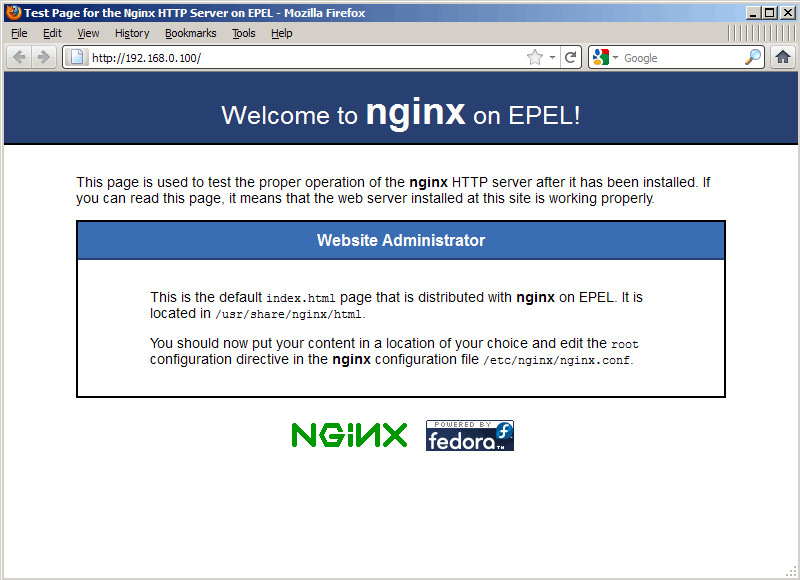
Sau đó, gõ địa chỉ IP của web server vào trình duyệt (ví dụ http://192.168.0.100), và chúng ta sẽ nhìn thấy màn hình hiển thị tương tự như dưới đây:

Cài đặt PHP5:

Về mặt bản chất, chúng ta có thể làm cho PHP5 hoạt động trong nginx qua PHP – FPM - FastCGI Process Manager, có thể thay thế chức năng của PHP FastCGI. Chúng ta có thể cài đặt php-fpm cùng với php-cli và một số module PHP5 giống như php-mysql, nếu người dùng muốn sử dụng MySQL từ các đoạn mã PHP như sau:
yum install php-fpm php-cli php-mysql php-gd php-imap php-ldap php-odbc php-pear php-xml php-xmlrpc php-eaccelerator php-magickwand php-magpierss php-mbstring php-mcrypt php-mssql php-shout php-snmp php-soap php-tidy
Sau đó, mở file /etc/php.ini và thiết lập cgi.fix_pathinfo=0:
vi /etc/php.ini
[...]
; cgi.fix_pathinfo provides *real* PATH_INFO/PATH_TRANSLATED support for CGI. PHP's
; previous behaviour was to set PATH_TRANSLATED to SCRIPT_FILENAME, and to not grok
; what PATH_INFO is. For more information on PATH_INFO, see the cgi specs. Setting
; this to 1 will cause PHP CGI to fix its paths to conform to the spec. A setting
; of zero causes PHP to behave as before. Default is 1. You should fix your scripts
; to use SCRIPT_FILENAME rather than PATH_TRANSLATED.
; http://www.php.net/manual/en/ini.core.php#ini.cgi.fix-pathinfo
cgi.fix_pathinfo=0
[...]
Để tham khảo kỹ hơn về lý do tại sao các bạn phải làm như vậy, hãy truy cập vào đây. Bên cạnh đó, để tránh khỏi các lỗi thường gặp như:
[08-Aug-2011 18:07:08] PHP Warning: phpinfo(): It is not safe to rely on the system's timezone settings. You are *required* to use the date.timezone setting or the date_default_timezone_set() function. In case you used any of those methods and you are still getting this warning, you most likely misspelled the timezone identifier. We selected 'Europe/Berlin' for 'CEST/2.0/DST' instead in /usr/share/nginx/html/info.php on line 2
trong /var/log/php-fpm/www-error.log khi chúng ta tiến hành gọi mã PHP trong trình duyệt, các bạn hãy thiết lập date.timezone trong file /etc/php.ini như sau:
[...]
[Date]
; Defines the default timezone used by the date functions
; http://www.php.net/manual/en/datetime.configuration.php#ini.date.timezone
date.timezone = "Europe/Berlin"
[…]
Để tìm đúng thông tin về múi giờ hệ thống đang sử dụng, gõ lệnh:
cat /etc/sysconfig/clock
[root@server1 nginx]# cat /etc/sysconfig/clock
ZONE="Europe/Berlin"
[root@server1 nginx]#
Tiếp theo, tạo đường dẫn khởi động cho php-fpm và kích hoạt dịch vụ này:
chkconfig --levels 235 php-fpm on
/etc/init.d/php-fpm start
PHP-FPM là 1 tiến trình daemon (với đoạn script /etc/init.d/php-fpm) có cơ chế hoạt động cùng với FastCGI server trên cổng 9000.

Thiết lập Nginx:

File thiết lập, cấu hình chính của nginx là /etc/nginx/nginx.conf, chúng ta có thể mở bằng lệnh:
vi /etc/nginx/nginx.conf
Bản chất quá trình thiết lập này tương đối dễ hiểu (các bạn có thể tham khảo thêm tại đây và đây). Trước tiên, chúng ta có thể tăng số lượng các tiến trình xử lý và thiết lập thông số keepalive_timeout về 1 giá trị phù hợp:
[...]
worker_processes 5;
[...]
keepalive_timeout 2;
[...]
Còn các virtual host đã được khởi tạo trong bộ container server {}, việc tiếp theo của chúng ta là chỉnh sửa giá trị mặc định vhost (trong /etc/nginx/nginx.conf) như sau:
[...]
server {
listen 80;
server_name _;
#charset koi8-r;
#access_log logs/host.access.log main;
location / {
root /usr/share/nginx/html;
index index.php index.html index.htm;
}
error_page 404 /404.html;
location = /404.html {
root /usr/share/nginx/html;
}
# redirect server error pages to the static page /50x.html
#
error_page 500 502 503 504 /50x.html;
location = /50x.html {
root /usr/share/nginx/html;
}
# proxy the PHP scripts to Apache listening on 127.0.0.1:80
#
#location ~ \.php$ {
# proxy_pass http://127.0.0.1;
#}
# pass the PHP scripts to FastCGI server listening on 127.0.0.1:9000
#
location ~ \.php$ {
root /usr/share/nginx/html;
fastcgi_pass 127.0.0.1:9000;
fastcgi_index index.php;
fastcgi_param SCRIPT_FILENAME $document_root$fastcgi_script_name;
include fastcgi_params;
}
# deny access to .htaccess files, if Apache's document root
# concurs with nginx's one
#
location ~ /\.ht {
deny all;
}
}
[…]
Thông số server_name _; sẽ biến phần này thành vhost mặc định (tuy nhiên, người sử dụng vẫn phải chỉ định rõ ràng giá trị hostname tương ứng, ví dụ như www.example.com). Ở chế độ mặc định, PHP-FPM sẽ luôn lắng nghe các tín hiệu trên cổng 9000, do vậy chúng ta phải thiết lập nginx kết nối tới 127.0.0.1:9000 đi kèm với fastcgi_pass 127.0.0.1:9000. Sau đó, khởi động lai nginx:
/etc/init.d/nginx restart
Tiếp theo, tạo mã PHP sau trong phần /usr/share/nginx/html...
vi /usr/share/nginx/html/info.php
<?php
phpinfo();
?>
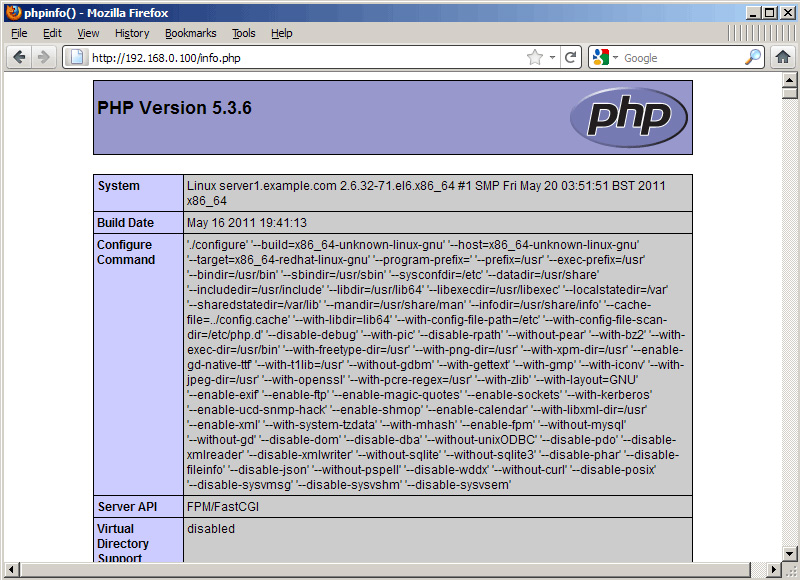
Việc tiếp theo là gọi file đó ra qua trình duyệt (ví dụ http://192.168.0.100/info.php):
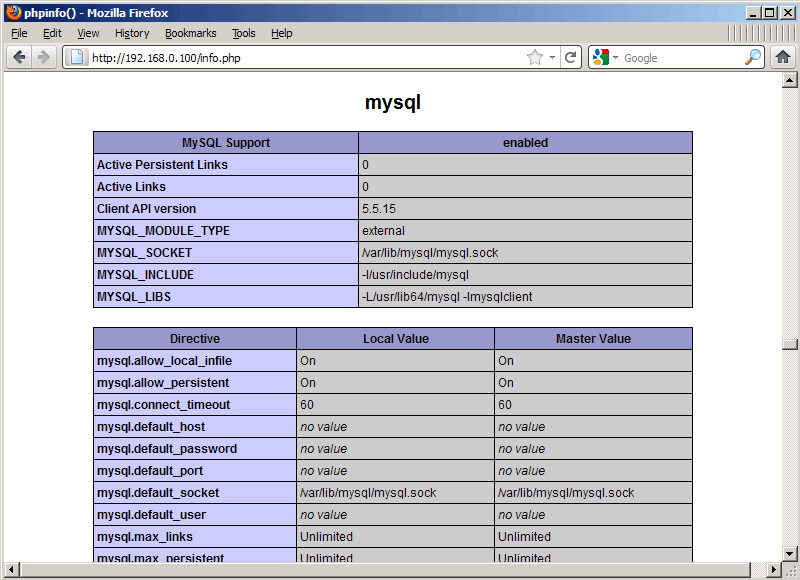
Chúng ta có thể thấy rằng PHP5 đã làm việc, và hoạt động qua FPM/FastCGI, được chỉ ra tại dòng Server API. Nếu kéo chuột xuống phía dưới, chúng ta sẽ thấy tất cả các module đã được kích hoạt sẵn trong PHP5, trong đó có bao gồm cả MySQL:

Mặt khác, PHP – FPM luôn "lắng nghe" các tín hiệu trên cổng 9000 qua địa chỉ 127.0.0.1 ở chế độ mặc định, và chúng ta cũng có thể thiết lập PHP-FPM sử dụng socket Unix để tránh hiện tượng quá tải TCP. Để thực hiện, các bạn hãy mở file cấu hình /etc/php-fpm.d/www.conf...
vi /etc/php-fpm.d/www.conf
và thay đổi dòng listen như dưới đây:
[...]
;listen = 127.0.0.1:9000
listen = /tmp/php5-fpm.sock
[...]
Sau đó, khởi động lại PHP-FPM:
/etc/init.d/php-fpm restart

Tiếp theo, tìm kiếm trong file cấu hình nginx với tất cả các giá trị của vhosts, thay đổi fastcgi_pass 127.0.0.1:9000; thành fastcgi_pass unix:/tmp/php5-fpm.sock;
vi /etc/nginx/nginx.conf
[...]
location ~ \.php$ {
root /usr/share/nginx/html;
fastcgi_pass unix:/tmp/php5-fpm.sock;
fastcgi_index index.php;
fastcgi_param SCRIPT_FILENAME $document_root$fastcgi_script_name;
include fastcgi_params;
}
[...]
Cuối cùng, khởi động lại Nginx:
/etc/init.d/nginx restart
Chúc các bạn thành công!
Một số đường dẫn tham khảo:
 - Nginx
 - nginx Wiki
 - PHP
 - PHP-FPM
 - MySQL
 - CentOS


Find - linux command

find 
find is one of the most useful Linux/Unix tools in the toolbelt, but most people use only a fraction of its power. Many Linux/Unix questions seen online can be solved using the find command alone, getting familiar with its main functionality is one of the best things you can do for yourself in the long-term.
find lets you do anything from finding all your .jpg files to seeing "all of Michael's text documents that have the execute bit set and have been modified since yesterday." And when combined with exec or xargs, a properly constructed command can make quick work of some very heavy tasks.

Basics

Let's start simple by looking for things by name. Remember that the first argument you give find is where to look.
# find all files with something in their name
find . -name "*.jpg"
...
./Pictures/iPhoto Library/Data/2006/Roll 20/00697_bluewaters_1440x900.jpg
./Pictures/iPhoto Library/Data/2006/Roll 20/00705_cloudyday_1440x900.jpg
./Pictures/iPhoto Library/Data/2006/Roll 20/00710_fragile_1600x1200.jpg
./Pictures/iPhoto Library/Data/2006/Roll 20/00713_coolemoticon_1440x900.jpg
./Pictures/iPhoto Library/Data/2006/Roll 20/00714_cloudyday_1440x900.jpg
...
Note that by default when you give a location to start from (in our case "."), the find command starts there and drills all the way down during its search. So in this case I started from my home directory and it found the files all the way down in "~/Pictures/iPhoto Library/Data/2006/Roll 20" as well. [ Placing quotes around the search criteria avoids issues with wildcard characters and is probably a good habit to get into. You can also use -iname instead of -name; it's the same but it's case insensitive ]

Find by User

# find all files that belong to a certain user
find . -user daniel
...
./Music/iTunes/iTunes Music/Tool/Undertow/01 Intolerance.m4a
./Music/iTunes/iTunes Music/Tool/Undertow/02 Prison Sex.m4a
./Music/iTunes/iTunes Music/Tool/Undertow/03 Sober.m4a
./Music/iTunes/iTunes Music/Tool/Undertow/04 Bottom.m4a
./Music/iTunes/iTunes Music/Tool/Undertow/05 Crawl Away.m4a
./Music/iTunes/iTunes Music/Tool/Undertow/06 Swamp Song.m4a
./Music/iTunes/iTunes Music/Tool/Undertow/07 Undertow.m4a
./Music/iTunes/iTunes Music/Tool/Undertow/08 4 Degrees.m4a
./Music/iTunes/iTunes Music/Tool/Undertow/09 Flood.m4a
./Music/iTunes/iTunes Music/Tool/Undertow/69 Disgustipated.m4a
...
[ Also works for groups (-group) ]

Find by Type

# find only directories, files, links, or sockets
find . -type d
...
./Development/envelope
./Development/mhp
./Development/mservers
./Development/mservers/fortune100
./Development/mst
./Development/mst/nmap
./Development/mst/services
...
Those are all directories, and to look for the others (files, links, or sockets), just substitute f, l, s for the d in the command above.

Find by Size

# find things over a megabyte in size
find ~/Movies/ -size +1024M
...
/Movies/Comedy/Funny.mpg
/Movies/Drama/Sad.avi
...
[ +M indicates that you're searching in megabytes, but you can also search in bytes or kilobytes if so desired. ]

Find by Modification Time

find also has a number of options that help one answer forensics-oriented questions such as when a file's contents or permissions were last changed.
# find all files in /etc owned by root that have been modified within the last day
find /etc/ -user root -mtime 1
...
/etc/passwd
/etc/shadow
...
The checks you can use here are:
  • -atime: when the file was last accessed
  • -ctime: when the file's permissions were last changed
  • -mtime: when the file's data was last modified
These searches are done in 24 hour increments and followed by a number n. If you want to match the exact 24 hour period you use n by itself. More frequently, however, you'll want to say everything since yesterday, or everything "more than 3 days ago." This is accomplished using the -n and +n options respectively.
There are also minute versions of the atime, ctime, and mtime arguments:
  • -amin: when (in minutes) the file was last accessed
  • -cmin: when (in minutes) the file's permissions were last changed
  • -mmin: when (in minutes) the file's data was last modified

Find by Permissions

# find all files in my directory with open permissions
find ~ -perm 777
...
~/testfile.txt
~/lab.rtf
...

Additional Forensics-oriented Options:

  • -nouser: shows output that's not associated with an existing userid
  • -nogroup: shows output not associated with an existing groupid
  • -links n: file has n links
  • -newer file: file was modified more recently than file.
  • -perm mode: file has mode permissions.

Combinations

Just as with any good unix/linux command, the real power comes in combining options. You can combine find arguments using and, or, and not. By default if you use two different arguments you're and'ing them. If you want to use or you give the -o option, and if you want to get everything except something, you use the ! option.
# find .jpg images (files) owned by daniel
find . -user daniel -type f -name *.jpg
...
./Pictures/iPhoto Library/autumn_woods.jpg
./Pictures/iPhoto Library/blue_forest.jpg
./Pictures/iPhoto Library/brothers.jpg
...
# now do the same, but exclude anything with "autumn" in the name
find . -user daniel -type f -name *.jpg ! -name autumn*
...
./Pictures/iPhoto Library/blue_forest.jpg
./Pictures/iPhoto Library/brothers.jpg
...
# show me all ruby programs in /apps owned by root that have been accessed in the last two minutes
find /apps/ -user root -type f -amin -2 -name *.rb
...
/apps/testing.rb
/apps/runme.rb
...

Combining find with exec and xargs

What's the fun in finding a bunch of stuff if you're not going to do something with it? So while it's interesting to say, "show me stuff", it's far more useful to say, "Take every text file owned by ex-employee Jason that's hasn't been accessed in 60 days and move it to a remote backup folder."

Cookbook Examples Of find in action

Find all files on your system that are world writable. The 0002 denotes a 2 in the "other" field in the file permissions, which is the write bit

find / -perm -0002

Collect files that are not owned by valid users and delete them

find / -nouser -print0 | xargs -0 rm

Clean the images off of your *nix desktop

find ~/Desktop -name "*.jpg" -o -name "*.gif" -o -name "*.png" -print0 | xargs -0 mv --target-directory ~/Pictures ** The -print0 option terminates results with a null character instead of the default newline, making it cleaner and less likely to balk in many cases

Correct the permissions on your web directory

find /your/webdir/ -type d -print0 | xargs -0 chmod 755
find /your/webdir -type f | xargs chmod 644


Show a list of files in /etc that have been modified since last month

find /etc -mtime -30

References
The find man page:
http://www.netadmintools.com/html/find.man.html
The xargs man page:
http://www.research.att.com/~gsf/man/man1/xargs.html

A tcpdump Tutorial and Primer

tcp_header
Image from securitywizardry.com

Table of Contents

tcpdump is the premier network analysis tool for information security professionals. Having a solid grasp of this über-powerful application is mandatory for anyone desiring a thorough understanding of TCP/IP. Many prefer to use higher level analysis tools such as Ethereal Wireshark, but I believe this to usually be a mistake.
In a discipline so dependent on a true understanding of concepts vs. rote learning, it's important to stay fluent in the underlying mechanics of the TCP/IP suite. A thorough grasp of these protocols allows one to troubleshoot at a level far beyond the average analyst, but mastery of the protocols is only possible through continued exposure to them.
When using a tool that displays network traffic a more natural (raw) way the burden of analysis is placed directly on the human rather than the application. This approach cultivates continued and elevated understanding of the TCP/IP suite, and for this reason I strongly advocate using tcpdump instead of other tools whenever possible.
15:31:34.079416 IP (tos 0x0, ttl  64, id 20244, offset 0, flags [DF], proto: 
TCP (6), length: 60) source.35970 > dest.80: S, cksum 0x0ac1 
(correct), 2647022145:2647022145(0) win 5840
0x0000:  4500 003c 4f14 4000 4006 7417 0afb 0257  E..
0x0010:  4815 222a 8c82 0050 9dc6 5a41 0000 0000  H."*...P..ZA....
0x0020:  a002 16d0 0ac1 0000 0204 05b4 0402 080a  ................
0x0030:  14b4 1555 0000 0000 0103 0302            ...U........

Options

Below are a few options (with examples) that will help you greatly when working with the tool. They're easy to forget and/or confuse with other types of filters, i.e. ethereal, so hopefully this page can serve as a reference for you, as it does me.
First off, I like to add a few options to the tcpdump command itself, depending on what I'm looking at. The first of these is -n, which requests that names are not resolved, resulting in the IPs themselves always being displayed. The second is -X, which displays both hex and ascii content within the packet. The final one is -S, which changes the display of sequence numbers to absolute rather than relative. The idea there is that you can't see weirdness in the sequence numbers if they're being hidden from you. Remember, the advantage of using tcpdump vs. another tool is getting manual interaction with the packets.
It's also important to note that tcpdump only takes the first 68 96 bytes of data from a packet by default. If you would like to look at more, add the -s number option to the mix, where number is the number of bytes you want to capture. I recommend using 0 (zero) for a snaplength, which gets everything. Here's a short list of the options I use most:
  • -i any : Listen on all interfaces just to see if you're seeing any traffic.
  • -n : Don't resolve hostnames.
  • -nn : Don't resolve hostnames or port names.
  • -X : Show the packet's contents in both hex and ASCII.
  • -XX : Same as -X, but also shows the ethernet header.
  • -v, -vv, -vvv : Increase the amount of packet information you get back.
  • -c : Only get x number of packets and then stop.
  • -s : Define the size of the capture (use -s0 unless you are intentionally capturing less.)
  • -S : Print absolute sequence numbers.
  • -e : Get the ethernet header as well.
  • -q : Show less protocol information.
  • -E : Decrypt IPSEC traffic by providing an encryption key.
  • -s : Set the snaplength, i.e. the amount of data that is being captured in bytes
  • -c : Only capture x number of packets, e.g. 'tcpdump -c 3'
[ The default snaplength as of tcpdump 4.0 has changed from 68 bytes to 96 bytes. While this will give you more of a packet to see, it still won't get everything. Use -s 1514 to get full coverage ]

Basic Usage

So, based on the kind of traffic I'm looking for, I use a different combination of options to tcpdump, as can be seen below:

  1. Basic communication // see the basics without many options
    # tcpdump -nS

  2. Basic communication (very verbose) // see a good amount of traffic, with verbosity and no name help
    # tcpdump -nnvvS

  3. A deeper look at the traffic // adds -X for payload but doesn't grab any more of the packet
    # tcpdump -nnvvXS

  4. Heavy packet viewing // the final "s" increases the snaplength, grabbing the whole packet
    # tcpdump -nnvvXSs 1514
Here's a capture of exactly two (-c2) ICMP packets (a ping and pong) using some of the options described above. Notice how much we see about each packet.
hermes root # tcpdump -nnvXSs 0 -c2 icmp
tcpdump: listening on eth0, link-type EN10MB (Ethernet), 23:11:10.370321 IP 
(tos 0x20, ttl  48, id 34859, offset 0, flags [none], length: 84) 
69.254.213.43 > 72.21.34.42: icmp 64: echo request seq 0

        0x0000:  4520 0054 882b 0000 3001 7cf5 45fe d52b  E..T.+..0.|.E..+
        0x0010:  4815 222a 0800 3530 272a 0000 25ff d744  H."*..50'*..%..D
        0x0020:  ae5e 0500 0809 0a0b 0c0d 0e0f 1011 1213  .^..............
        0x0030:  1415 1617 1819 1a1b 1c1d 1e1f 2021 2223  .............!"#
        0x0040:  2425 2627 2829 2a2b 2c2d 2e2f 3031 3233  $%&'()*+,-./0123
        0x0050:  3435 3637                                4567
23:11:10.370344 IP (tos 0x20, ttl  64, id 35612, offset 0, flags [none], 
length: 84) 72.21.34.42 > 69.254.213.43: icmp 64: echo reply seq 0
        0x0000:  4520 0054 8b1c 0000 4001 6a04 4815 222a  E..T....@.j.H."*
        0x0010:  45fe d52b 0000 3d30 272a 0000 25ff d744  E..+..=0'*..%..D
        0x0020:  ae5e 0500 0809 0a0b 0c0d 0e0f 1011 1213  .^..............
        0x0030:  1415 1617 1819 1a1b 1c1d 1e1f 2021 2223  .............!"#
        0x0040:  2425 2627 2829 2a2b 2c2d 2e2f 3031 3233  $%&'()*+,-./0123
        0x0050:  3435 3637                                4567
2 packets captured
2 packets received by filter
0 packets dropped by kernel
hermes root # 

Common Syntax

Expressions allow you to trim out various types of traffic and find exactly what you're looking for. Mastering the expressions and learning to combine them creatively is what makes one truly powerful with tcpdump. There are three main types of expression: type, dir, and proto.
Type options are host, net, and port. Direction is indicated by dir, and there you can have src, dst, src or dst, and src and dst. Here are a few that you should definitely be comfortable with:

  • host // look for traffic based on IP address (also works with hostname if you're not using -n)
    # tcpdump host 1.2.3.4

  • src, dst // find traffic from only a source or destination (eliminates one side of a host conversation)
    # tcpdump src 2.3.4.5
    # tcpdump dst 3.4.5.6

  • net // capture an entire network using CIDR notation
    # tcpdump net 1.2.3.0/24

  • proto // works for tcp, udp, and icmp. Note that you don't have to type proto
    # tcpdump icmp

  • port // see only traffic to or from a certain port
    # tcpdump port 3389

  • src, dst port // filter based on the source or destination port
    # tcpdump src port 1025
    # tcpdump dst port 389

  • src/dst, port, protocol // combine all three
    # tcpdump src port 1025 and tcp
    # tcpdump udp and src port 53
You also have the option to filter by a range of ports instead of declaring them individually, and to only see packets that are above or below a certain size.
  • Port Ranges // see traffic to any port in a range
    tcpdump portrange 21-23

  • Packet Size Filter // only see packets below or above a certain size (in bytes)
    tcpdump less 32
    tcpdump greater 128
  • [ You can use the symbols for less than, greater than, and less than or equal / greater than or equal signs as well. ]
    // filtering for size using symbols
    tcpdump > 32
    tcpdump <= 128

Writing to a File

tcpdump allows you to send what you're capturing to a file for later use using the -w option, and then to read it back using the -r option. This is an excellent way to capture raw traffic and then run it through various tools later.
The traffic captured in this way is stored in tcpdump format, which is pretty much universal in the network analysis space. This means it can be read in by all sorts of tools, including Wireshark, Snort, etc.

Capture all Port 80 Traffic to a File

# tcpdump -s 1514 port 80 -w capture_file
Then, at some point in the future, you can then read the traffic back in like so:

Read Captured Traffic back into tcpdump

# tcpdump -r capture_file

Getting Creative

Expressions are nice, but the real magic of tcpdump comes from the ability to combine them in creative ways in order to isolate exactly what you're looking for. There are three ways to do combinations, and if you've studied computers at all they'll be pretty familar to you:
  1. AND
    and or &&
  2. OR
    or or ||
  3. EXCEPT
    not or !

More Examples

# TCP traffic from 10.5.2.3 destined for port 3389
tcpdump -nnvvS and src 10.5.2.3 and dst port 3389
# Traffic originating from the 192.168 network headed for the 10 or 172.16 networks
tcpdump -nvX src net 192.168.0.0/16 and dst net 10.0.0.0/8 or 172.16.0.0/16
# Non-ICMP traffic destined for 192.168.0.2 from the 172.16 network
tcpdump -nvvXSs 1514 dst 192.168.0.2 and src net and not icmp
# Traffic originating from Mars or Pluto that isn't to the SSH port
tcpdump -vv src mars and not dst port 22
As you can see, you can build queries to find just about anything you need. The key is to first figure out precisely what you're looking for and then to build the syntax to isolate that specific type of traffic.

Grouping

Also keep in mind that when you're building complex queries you might have to group your options using single quotes. Single quotes are used in order to tell tcpdump to ignore certain special characters -- in this case the "( )" brackets. This same technique can be used to group using other expressions such as host, port, net, etc. Take a look at the command below:
# Traffic that's from 10.0.2.4 AND destined for ports 3389 or 22 (incorrect)
tcpdump src 10.0.2.4 and (dst port 3389 or 22)
If you tried to run this otherwise very useful command, you'd get an error because of the parenthesis. You can either fix this by escaping the parenthesis (putting a \ before each one), or by putting the entire command within single quotes:
# Traffic that's from 10.0.2.4 AND destined for ports 3389 or 22 (correct)
tcpdump 'src 10.0.2.4 and (dst port 3389 or 22)'

Advanced

You can also filter based on specific portions of a packet, as well as combine multiple conditions into groups. The former is useful when looking for only SYNs or RSTs, for example, and the latter for even more advanced traffic isolation.
[ Hint: An anagram for the TCP flags: Unskilled Attackers Pester Real Security Folk ]
Show me all URGENT (URG) packets...
# tcpdump 'tcp[13] & 32!=0'
Show me all ACKNOWLEDGE (ACK) packets...
# tcpdump 'tcp[13] & 16!=0'
Show me all PUSH (PSH) packets...
# tcpdump 'tcp[13] & 8!=0'
Show me all RESET (RST) packets...
# tcpdump 'tcp[13] & 4!=0'
Show me all SYNCHRONIZE (SYN) packets...
# tcpdump 'tcp[13] & 2!=0'
Show me all FINISH (FIN) packets...
# tcpdump 'tcp[13] & 1!=0'
Show me all SYNCHRONIZE/ACKNOWLEDGE (SYNACK) packets...
# tcpdump 'tcp[13] & =18'
[ Note: Only the PSH, RST, SYN, and FIN flags are displayed in tcpdump's flag field output. URGs and ACKs are displayed, but they are shown elsewhere in the output rather than in the flags field ]
Keep in mind the reasons these filters work. The filters above find these various packets because tcp[13] looks at offset 13 in the TCP header, the number represents the location within the byte, and the !=0 means that the flag in question is set to 1, i.e. it's on.
As with most powerful tools, however, there are multiple ways to do things. The example below shows another way to capture packets with specific TCP flags set.
Capture TCP Flags Using the tcpflags Option...
# tcpdump 'tcp[tcpflags] & & tcp-syn != 0'

Specialized Traffic

Finally, there are a few quick recipes you'll want to remember for catching specific and specialized traffic, such as IPv6 and malformed/likely-malicious packets.
IPv6 traffic
# tcpdump ip6
Packets with both the RST and SYN flags set (why?)
# tcpdump 'tcp[13] = 6'
Traffic with the 'Evil Bit' Set
# tcpdump 'ip[6] & 128 != 0'

Conclusion

Well, this primer should get you going strong, but the man page should always be handy for the most advanced and one-off usage scenarios. I truly hope this has been useful to you, and feel free to contact me if you have any questions. ::

Additional Resources and References