| The Real Problem | ||||||||||||||||||||||
When you start your PC, lot of processes will be running. Some processes run by default and some are started by you. As
you keep installing more and more software's, the process list goes bigger
and bigger. Some day it reaches the stage where in it gets difficult to
manage those processes and in between if some spyware come and sit on
your machine, you can't make out easily until some really bad thing
happens.
|
||||||||||||||||||||||
| Detection Tools | ||||||||||||||||||||||
Here I will throw some light on various methods of detecting
spyware or any malicious programs running on the computer, starting from basic to advanced level.
Usually startup programs are managed through various registry settings. If you are an expert, then you can edit these registry settings yourself. You can find a good list of startup registry locations here. Below are the some of very useful tools which can either be used alone or in combination with others. |
||||||||||||||||||||||
| ||||||||||||||||||||||
| Conclusion | ||||||||||||||||||||||
Antivirus or Antispyware applications can't always protect you from
new malicious programs. You need to defend on your own to protest your
own system from these programs. Hope this article has enlightened you to
some extent in that direction.
|
||||||||||||||||||||||
| References | ||||||||||||||||||||||
| 1. HijackThis: Remove the hijacked entries from the system. | ||||||||||||||||||||||
| 2. Autoruns: System startup entries enumerator and eliminator. | ||||||||||||||||||||||
| 3. Process Explorer: Dispalys process details including loaded modules. | ||||||||||||||||||||||
| 4. BHO Remover: Scans and removes installed BHO's from the system. | ||||||||||||||||||||||
| 5. WinServiceManager: Manage Windows services at one point | ||||||||||||||||||||||
| 6. RemoteDLL: Tool to inject or remove the DLL from process | ||||||||||||||||||||||
| 7. BlackLight: Light rootkit detecttior from F-Secure. | ||||||||||||||||||||||
| 8. IceSword: Advanced rootkit detection tool. | ||||||||||||||||||||||
| 9. Rootkit Detective: Rootkit detection tool from McAfee. | ||||||||||||||||||||||
| 10.Rootkit Revealer: Sysinternal's rootkit detection tool. | ||||||||||||||||||||||
| 11.IceSword & Rootkit : Using IceSword to detect rootkits. |
Showing posts with label windows. Show all posts
Showing posts with label windows. Show all posts
Wednesday, 29 February 2012
Uncovering Hidden Processes on Windows System

Recover Windows Passwords Using Rainbow Crack
| About Rainbow Crack |
Gone are the days when we have to wait for the days together to
recover the Windows account password. Thanks to the
rainbow crack
technology, now we can crack the passwords in few seconds
with 100% success rate.
This Rainbow cracking technology works on simple concept. Instead of computing the hashes for each password dynamically and comparing with the correct one during cracking, password hashes are computed in advance for all character sets. These hashes are then stored in datasets called rainbow tables. So cracking involves just comparing the current password hash with the pre computed hashes within the rainbow tables and get the associated plain text password. Hence it takes very less time compared to the traditional method of brute force cracking. Setting up the rainbow table for various character sets is just one time activity and may take days or months based on the character set and speed of the machine. Once the rainbow tables are ready, you can feed the password hash to it and get your password cracked in seconds. |
 |
| Recovering Windows Account Password |
In order to recover your Windows user password,
first you have to get the
LM hash for the target user account. This can be done in many ways. You can
use any of the tools such as
pwdump,
cain&abel or
LC5. You
need to have administrator privileges to dump the hashes using these
tools. If you
have lost administrator password itself, then you can boot the
system using
BackTrack live cd or Windows restore CD and then copy the SAM &
SYSTEM hive files (which is located in c:\windows\system32\config
folder. Note that your system drive may be different). Next feed these
files to Cain
& Abel tool to get the LM hashes for the target account.
|
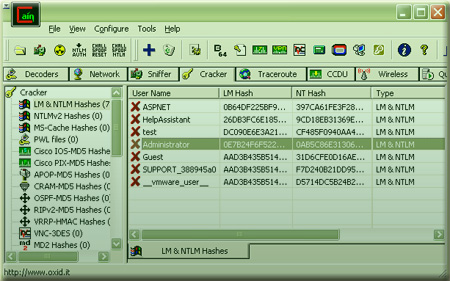
| Here is the screenshot of retrieving LM hash for users using the Cain&Abel tool |
 |
Once you have collected the LM
password hash, you can start the password cracking operation using
the rcrack tool (part of the
RainbowCrack Project)
with the rainbow tables that you have already created for certain
character sets.
|
| Note that with Vista onwards Windows no longer stores LM hashes (unless under certain configurations) as it was susceptible to easy brute force cracking. In such cases, you can as well use the NTLM hash to recover password with RainbowCrack. |
| Ideally setting up the rainbow tables takes huge amount of disk space and lot of computing time to generate the tables. Hence its not practical for anyone to create such an setup on the home system. |
| Online Rainbow Cracking |
| To make the game eaiser, lot of websites ( including free as
well as commericial ) offer free online rainbow cracking service. These
organizations have setup huge database of rainbow tables for all keysets
on their high end machines which makes the cracking possible in few
seconds. Also these services offer password cracking for different type
of hashes such as LM, NTLM, SHA, MD5 etc. For FREE services you may have to wait for some time based on the load and incoming requests. However you may also look for commercial services for quick results at smaller cost. If you are an organization who needs this kind of password recovery service frequently then you can consider buying precomputed rainbow tables for reasonable price and perform the password cracking operation using rcrack tool. |
Here are the list of websites which offer
FREE online rainbow
cracking.
|
| If you find good online hash cracker links let us know, we will update it here. |
| Now you don't have to wait for days together with half hope to get back your lost password :) |
Hidden Registry Detection
| Contents | ||||||||||||||||
| Introduction to Registry | ||||||||||||||||
Registry is the large database where Windows stores all the
system, security and software specific settings. It is a tree like
structure, which can be viewed or modified using the standard
windows utilities such as Regedit.exe (start->run->
regedit) .
|
||||||||||||||||
In addition to all system settings, Registry also contains
various startup entries for processes and services that are
automatically started
when Windows starts. For example, all Windows services are stored
under the following Registry key,
| ||||||||||||||||
| 'HKEY_LOCAL_MACHINE\SYSTEM\CurrentControlSet\Services'. | ||||||||||||||||
| Similarly some of the startup process entries can be found in the following Registry locations, | ||||||||||||||||
| HKEY_LOCAL_MACHINE\SOFTWARE\Microsoft\Windows\CurrentVersion\Run,
HKEY_LOCAL_MACHINE\SOFTWARE\Microsoft\Windows\CurrentVersion\policies\explorer\Run | ||||||||||||||||
| Rootkit & Reason to Hide Registry | ||||||||||||||||
| Rootkits generally modifies these entry points to start their own processes, services or drivers. So it's important for the Rootkit to hide these registry entries to prevent its detection from various system-monitoring tools such as Autoruns, HijackThis, etc. | ||||||||||||||||
|
Rootkits use various methods to hide their registry infiltration.
One of the most commonly used techniques is hooking the registry API
functions such as RegOpenKey, RegEnumKey, RegEnumValue etc. All of these
top level API functions in turn will call low level NT functions such as
NTOpenKey, NtEnumerateKey and NtEnumerateValueKey etc. So in order
to be more effective, Rootkits typically hook NT version of these
functions. As a result whenever any application calls these registry functions, Hooked Rootkit function will return the filtered results there by hiding its presence. |
||||||||||||||||
| Art of Detecting Hidden Registry Keys | ||||||||||||||||
|
Most common detection mechanism used in these cases is the cross-view
comparison method. In this method initially, high level registry API
functions (such as RegEnumKey, RegEnumValue) are used to enumerate the
keys and values. Next some of the advanced techniques are used to enumerate
the same
registry keys. Then the both results are compared to find out the
hidden Rootkit entries.
Many such lower level techniques are present to detect hidden registry keys. Here we will discuss about two such prominent methods in detail. |
||||||||||||||||
| Hidden Registry Detection using Direct NT System Call Method | ||||||||||||||||
|
As mentioned previously, Rootkits hide their registry entries by
hooking the lower level NT functions. In order to effectively detect
these entries, one can directly invoke those NT functions rather than
using API functions. Every NT function in Windows is uniquely identified
through its service number (For NtEnumerateKey its 0x47). So instead of
calling these NT functions, one can directly call these functions by
using INT 2E (for Windows 2K) or Sysenter (Windows XP onwards)
instruction by passing the respective service number. Here is the direct implementation of NtEnumerateKey and NtEnumerateValueKey function, which can be directly called to bypass any API level hooks put by the Rootkits. |
||||||||||||||||
//For Windows XP, for other platforms only service number will differ _declspec(naked)
NTSTATUS __stdcall DirectNtEnumerateKey(
IN HANDLE KeyHandle,
IN ULONG Index,
IN KEY_INFORMATION_CLASS KeyInformationClass,
OUT PVOID KeyInformation,
IN ULONG KeyInformationLength,
OUT PULONG ResultLength )
{
__asm
{
mov eax, 0x47
call DirectCall_XP
ret 0x18
DirectCall_XP:
mov edx, esp
sysenter
}
}
//For Windows XP, for other platforms only service number will differ _declspec(naked)
NTSTATUS __stdcall DirectNtEnumerateValueKey(
IN HANDLE KeyHandle,
IN ULONG Index,
IN KEY_VALUE_INFORMATION_CLASS KeyValueInformationClass,
OUT PVOID KeyValueInformation,
IN ULONG KeyValueInformationLength,
OUT PULONG ResultLength )
{
__asm
{
mov eax, 0x49
call DirectCall_XP
ret 0x18
DirectCall_XP:
mov edx, esp
sysenter
}
}
|
||||||||||||||||
|
Rootkits may also hook the NtOpenKey function to prevent any hidden
key from being opened. So it will become useless even if one is able to
discover the key name. In such case, one can use direct NtOpenKey
function as shown below... |
||||||||||||||||
//Note that this code is written for Windows XP. For other platforms
only service number will differ _declspec(naked)
NTSTATUS __stdcall DirectNtOpenKey(
OUT PHANDLE KeyHandle,
IN ACCESS_MASK DesiredAccess,
IN POBJECT_ATTRIBUTES ObjectAttributes )
{
__asm
{
mov eax, 0x77
call DirectCall_XP
ret 0x0C
DirectCall_XP:
mov edx, esp
sysenter
}
}
|
||||||||||||||||
| Though Rootkits can bypass this technique by hooking the above-mentioned NT functions in the kernel, it presents simple but very effective mechanism to detect any hidden Rootkit registry entries in user land. | ||||||||||||||||
| Hidden Registry Detection by Directly Reading Registry Hives | ||||||||||||||||
| Windows stores the entire registry contents into the different files called Hives in a standard format. A different portion of registry is stored in respective hive files such as SYSTEM, SOFTWARE, SECURITY, SAM, etc. in the 'C:\Windows\System32\Config' folder. Here is the table showing the mapping between the registry section and corresponding registry hive file. | ||||||||||||||||
|
||||||||||||||||
|
Though the internal format of
these registry hive file is undocumented, lot of code samples and good
amount of documentation can be found on the net.These hive files are
generally locked while Windows is running and hence remains
inaccessible. However if you like to understand internal storage
structure of these hive files, you can use the API function such as
RegSaveKey (or equivalent
NT function NtSaveKey) to save any registry section to
the chosen file. Then you can manually traverse through this hive file
to decipher the low level of registry entries. Detailed code sample to traverse the hive file can be found in the article [1] 'How to avoid the detection of hidden regkey by hooking RegSaveKeyA' written by EiNSTeiN_. Also the whitepaper [2] 'Detection of Rootkits in Windows registry' by miel-labs explains in detail the complete structure of registry hive file. In this detection method, all registry entries are retrieved by traversing through these hive files. Then this list is compared against the high level list obtained through normal registry API functions such as RegEnumKey, RegEnumValue etc. At the end any additional entries discovered will be marked as Hidden Rootkit registry entries. Though this method involves using undocumented registry hive traversal method, it is very effective method in detecting the registry entries hidden through even the Kernel level hooks (such as SSDT hooks). |
||||||||||||||||
| Conclusion | ||||||||||||||||
| This article shows why Rootkits hide their registry entries and some of the methods which can be used to detect such hidden entries to reveal the traces of Rootkits. Though some of these techniques can be bypassed by Rootkits operating in Kernel land, these methods present very simple and powerful methods to detect any registry entries hidden by userland Rootkits. | ||||||||||||||||
| References | ||||||||||||||||
| 1.
How to avoid the detection of hidden regkey by hooking RegSaveKeyA 2. Detection of Rootkits in Windows registry 3. How to become unseen on Windows NT by HxDef |
Hidden Rootkit Services Detection
| Contents |
| Introduction to Windows Services |
Windows Service is a program executing in the background which is
started automatically when Windows boots and runs as long as System
is up and running. Service is designed to perform a specific
function and generally does not interact with user.Compared to
normal processes, Services normally run with
'System' privilege
which allow them to perform higher privilege operations. Windows
Service Manager (Services.exe) is responsible for managing all
aspects of Services. Services can be managed using the built in
'Service Management Console' which can be launched through
'Administrative Tools' in Control Panel.
As services runs with highest privilege, most Rootkits implement services to keep control over the entire system.Though services operate in the background they can be seen through the 'Task Manager' or 'Service Management Console'. So it is important for the Rootkits to hide their services to prevent its detection. |
| How Rootkits Hide Services |
|
Many Rootkits such as Hacker Defender, Vanquish use the Services not
only to manage its operations but to remain under the cover. As services
are visible to normal user, Rootkits use multiple techniques to hide
their services.
One of the common way to list windows services is using EnumServicesStatus API function. So Rootkits generally hook this function and return the results by filtering out its services. As a result any Anti-Rootkit application which uses this method will fail to discover such Rootkit services. Another way to list all services is by enumerating 'Services' registry key. Windows keeps the database of all installed services in the registry at following location . |
| 'HKEY_LOCAL_MACHINE\System\CurrentControlSet\Services' |
|
So application can manually enumerate through all the entries within
this registry key to discover all the services. To hide from this
technique, Rootkits hook the registry enumeration API functions and
return the modified values thus deceiving the detection tools. Detailed information about hiding registry entries and their detection is mentioned in the article [1]"Hidden Registry Detection". |
| Hidden Rootkit Services Detection Methods |
| As mentioned above, Rootkits use advanced techniques to hide their services from being detected by various Applications. Here are some of the methods which can be effectively used to detect most of such Rootkit services. |
|
| Hidden Services Detection using Hook Bypass Method through Memory Mapping DLL |
|
This method rely on the fact that API hooking can be bypassed by
directly mapping the DLL as an image rather than loading it through
LoadLibrary function. This way any attempt by Rootkits to hook
EnumServiceStatus function can be prevented by directly mapping the
Advapi32.dll through CreateFileMapping API function. Then the
EnumServiceStatus function within the mapped image is located and called
directly thus bypassing the hooks leading to discovery of hidden Rootkit
services. However this is not the new method and it was initially used by IceSword (Anti-Rootkit tool). Later it was exposed by EiNSTeiN_ in his [2]'Hidden Service Detection' article. Here is the complete code example which illustrates this technique. |
typedef BOOL (WINAPI *LPFUN_ENUMSERVICESSTATUSEX) (
    SC_HANDLE hSCManager,
    SC_ENUM_TYPE InfoLevel,
    DWORD dwServiceType,
    DWORD dwServiceState,
    LPBYTE lpServices,
    DWORD cbBufSize,
    LPDWORD pcbBytesNeeded,
    LPDWORD lpServicesReturned,
    LPDWORD lpResumeHandle,
    LPCTSTR pszGroupName
  );


 BOOL DetectHiddenServicesUsingHookBypassMethod
                               (SC_HANDLE scManager)
 {
 char WinSysDir[MAX_PATH];
 char advapiPath[MAX_PATH*2];

   GetSystemDirectory(WinSysDir, MAX_PATH);
   sprintf_s(advapiPath, MAX_PATH*2,
    "%s\\advapi32.dll", WinSysDir);

   HANDLE hFile = CreateFile(advapiPath,
           GENERIC_READ | GENERIC_EXECUTE ,
           FILE_SHARE_READ,
           0,
           OPEN_EXISTING,
           0,
           0);

   if( hFile == INVALID_HANDLE_VALUE )
   {
    printf("%s : Failed to open %s, Error=0x%.8x",
               __FUNCTION__, advapiPath, GetLastError());
    return FALSE;
   }

   HANDLE hMappedFile = CreateFileMapping(hFile, NULL,
                  PAGE_EXECUTE_READ |SEC_IMAGE, 0, 0, NULL);

   if( hMappedFile == NULL )
   {
    printf("%s : Failed to create file
              mapping for advapi32.dll", __FUNCTION__);
    CloseHandle(hFile);
    return FALSE;
   }

   CloseHandle(hFile);

   LPVOID addrMappedDll = MapViewOfFile(hMappedFile,
              FILE_MAP_READ | FILE_MAP_EXECUTE , 0, 0, 0);

   if( addrMappedDll == NULL )
   {
    printf("%s : Failed to map view
              of flle advapi32.dll", __FUNCTION__);
    CloseHandle(hMappedFile);
    return FALSE;
   }

   CloseHandle(hMappedFile);

   LPFUN_ENUMSERVICESSTATUSEX MappedEnumServicesStatusEx = NULL;

   LPVOID addrDllBase = GetModuleHandle("advapi32.dll");
   MappedEnumServicesStatusEx = ( (DWORD)addrMappedDll +
          ((DWORD)&EnumServicesStatusEx - (DWORD)addrDllBase) );

   printf("Org Advapi32 base address is  %p", addrDllBase);
   printf("Org EnumServiceStatus address is  %p",
                                       &EnumServicesStatusEx);
   printf("Mapped Advapi32 address is %p", addrMappedDll);
   printf("Mapped enumservicesstatusEx address is %p",
                                  MappedEnumServicesStatusEx);

   // Now enumerate services using
   // mapped EnumServicesStatusEx function

   DWORD bytesNeeded ;
   DWORD countServices ;
   DWORD resumeHandle = 0;
   DWORD lastErrorCode;
   int totalCount=0;
   int curIndex=-1;
   BOOL retvalue;
   DWORD buffSize = sizeof(ENUM_SERVICE_STATUS_PROCESS) * 500;
   ENUM_SERVICE_STATUS_PROCESS *enumServices = NULL;

   while( 1 )
   {
       enumServices =
    ( ENUM_SERVICE_STATUS_PROCESS *) malloc( buffSize );

       if( enumServices == NULL )
       {
           printf("\n %s :
         Failed to allocated buffer", __FUNCTION__);
           break ;
       }

       retvalue = MappedEnumServicesStatusEx( scManager ,
                 SC_ENUM_PROCESS_INFO ,
                 SERVICE_WIN32 ,
                 SERVICE_STATE_ALL ,
                 enumServices ,
                 buffSize ,
                 &bytesNeeded ,
                 &countServices,
                 &resumeHandle,
                 NULL
                 );


       // Error has occured ...
    // not related to more data...so return

       lastErrorCode = GetLastError();
       if( retvalue == FALSE && lastErrorCode != ERROR_MORE_DATA )
       {
           free( enumServices );
           break;
       }

       for(int i = 0; i < countServices; i++ )
       {
        // Check if this is hidden service
  // by comparing with earlier results

        if( IsHiddenService(enumServices[i].lpServiceName) )
        {
         //We have found hidden service
         printf("\n Found hidden service %s ",
                    enumServices[i].lpServiceName);
        }
       }

       free( enumServices );

       // check if there are more services to be retrieved ...?
       if( (retvalue == FALSE) &&
                    (lastErrorCode == ERROR_MORE_DATA) )
          buffSize = bytesNeeded ;
       else
          break;
   }

   UnmapViewOfFile(addrMappedDll);

   return TRUE;
 }
|
| This method can effectively detect the Rootkits such as HackerDefender which hooks EnumServiceStatus function to hide its services. Though there is no currently known Rootkits which hide against this method, it is possible to bypass this detection mechanism by hooking file mapping functions and then extending API hooks to any mapped DLL image also. |
| Hidden Services Detection by Enumerating Child Processes of Services.exe |
|
All Windows service processes are created by 'Service Manager
Process' i.e. Services.exe. This fact can be used to list all the child
processes created by Services.exe, thus possibly detecting all running
services. Since the normal process enumeration function can be hooked by
Rootkits, the best way to implement this technique is to directly use
NtQuerySystemInformation function to enumerate all processes and then
separating out the child processes created by Services.exe. Then this
list can be compared with the normal list to find all hidden services. Below is the sample code which uses this technique to uncover all running services. |
BOOL IsChildProcess(int pidParent, int pidChild, HANDLE hprocess)
 {
   NTSTATUS status = STATUS_SUCCESS;
   PROCESS_BASIC_INFORMATION procInfo;

   status = NtQueryInformationProcess(hprocess,
          ProcessBasicInformation,
          &procInfo,
          sizeof(procInfo),
          NULL
          );

   if( status == STATUS_SUCCESS )
   {
       if( procInfo.ParentProcessId == pidParent )
    return TRUE;
   }

   return FALSE;
 }


 void DetectHiddenServices(int pidService)
 {
    NTSTATUS status = STATUS_SUCCESS;
    DWORD dwSize = 800000;
    void *bufHandleTable = malloc(dwSize);;

    status = NtQuerySystemInformation
    (SystemHandleInformation, bufferHandleTable, dwSize, 0);

    if( status != STATUS_SUCCESS )
    {
 //failed
 return;
    }

   HANDLE hprocess;
   SYSTEM_HANDLE_INFORMATION *HandleInfo =
                   (SYSTEM_HANDLE_INFORMATION *) bufHandleTable;

   for(int i=0; i< HandleInfo->NumberOfHandles; i++)
   {
    int pid = HandleInfo->Handles[i].UniqueProcessId;

 //If this process is services.exe then ignore
 if( pidService == pid )
            continue;

 hprocess =
 OpenProcess(PROCESS_QUERY_INFORMATION | PROCESS_VM_READ,
                               false,
                               pid);

 if( hprocess == NULL )
     continue;

 if( IsChildProcess(pidServices, pid, hprocess) )
 {
    printf("Found service process %d", pid);
 }

 CloseHandle(hprocess);
   }


 }
|
| Although this technique can be easily thwarted by hooking the NtQuerySystemInformation in the Kernel, it presents simple way to detect services hidden by userland Rootkits. |
| Hidden Services Detection by Enumerating Processes with 'NtControlPipe' Handle |
|
This method relies on the fact that every Windows service interacts with 'Service Manager Process'
(services.exe) through named pipe. This named pipe has the name
'NtControlPipe**' where ** indicates the start order of that service. So
by enumerating all the processes having handle 'NtControlPipe**' one can
list all running services. Then this list can be compared with normal
services discovered through EnumServiceStatus function to uncover the
hidden service processes. Here is the sample code below which uses this technique. |
NTSTATUS status = STATUS_SUCCESS;
 DWORD dwSize = 800000;
 void *bufHandleTable = malloc(dwSize);;

 status = NtQuerySystemInformation(SystemHandleInformation,
   bufferHandleTable, dwSize, 0);

 if( status != STATUS_SUCCESS )
 {
 //failed
 return;
 }

 HANDLE hprocess,hCopy;
 IO_STATUS_BLOCK iostatus;
 int pid;
 BOOL bResult;


 SYSTEM_HANDLE_INFORMATION *HandleInfo =
  (SYSTEM_HANDLE_INFORMATION *) bufHandleTable;

 PFILE_NAME_INFORMATION pNameInfo =
 (PFILE_NAME_INFORMATION)malloc( MAX_PATH * 2 * 2);

 int dwInfoSize = MAX_PATH * 2 * 2;


 for(int i=0; i< HandleInfo->NumberOfHandles; i++)
 {
 int pid = HandleInfo->Handles[i].UniqueProcessId;
 //If this process is services.exe then ignore
 if( pidService == pid )
  continue;

 //Check for only file handles
 //For XP HANDLE_TYPE_FILE is 28
 if( HandleInfo->Handles[i].ObjectTypeIndex ==  HANDLE_TYPE_FILE)
 {
 hprocess =
 OpenProcess(PROCESS_DUP_HANDLE | PROCESS_QUERY_INFORMATION,
        false,
        pid
        );

 if( hprocess == NULL )
    continue;

 bResult = DuplicateHandle(hprocess,
   (HANDLE)HandleInfo->Handles[i].Handle,
   GetCurrentProcess(),
   &hCopy,
   MAXIMUM_ALLOWED,
   FALSE,
   0);

   if( bResult == FALSE )
   continue;

   status = NtQueryInformationFile(hCopy,
   &iostatus,
   pNameInfo,
   dwInfoSize,
   FileNameInformation);

   if( status == STATUS_SUCCESS )
   {
 // check if this handle is named
 // pipe with name 'ntcontrolpipe'

 wcslwr(pNameInfo->FileName);
 if( wcsstr( pNameInfo->FileName, L"ntcontrolpipe") )
 {
  //Found the service, now check if its hidden service
  if( IsHiddenService(pid) )
  {
  printf("Found hidden service %d", pid);
  }

 }
   }

   CloseHandle(hCopy);
   CloseHandle(hprocess);
  }

} //End of for loop
|
| But this code hangs when NtQueryInformationFile tries to get the name of named pipe. However it works greatly when executed inside the kernel. Even the [3] Process Explorer from Sysinternals uses the driver to enumerate process handles. It may be possible to successfully implement this method in the user land itself through some innovative way. |
| Hidden Services Detection by Enumerating Services Registry Key |
| As mentioned earlier, Windows stores all installed services under the following registry key, |
| HEKY_LOCAL_MACHINE\System\CurrentControlSet\Services' |
|
Normally Rootkits
hides their service entries under this key by using variety of registry
hiding technique. As a result any attempt to discover these hidden
services using standard registry functions will fail. However these
hidden keys can be successfully uncovered as explained in the article
[1]'Hidden Registry Detection'. Though many Rootkits uses combination of methods to hide their services, there are some (for example Vanquish Rootkit) which uses only this technique to hide its services. As a result such services are shown even in normal query through EnumServiceStatus function. So in order to effectively mark it as Rootkit, one has to use this method of detection as well. |
| Conclusion |
| This article described variety of techniques to detect the hidden
Rootkit services. Even though most of the times one method is enough to
uncover the hidden services, its good idea to combine multiple
techniques to make the detection process more robust and successful. Though the 'Hidden Rootkit Services' detection techniques presented here are effective ones, often they are not enough considering the evolving trend of emerging Rootkits. In that context this article only serves as basic footsteps towards more sophisticated detection methods. |
| References |
| 1.
Hidden Registry Detection to Uncover the Rootkits 2. Hidden Service Detector 3. Process Explorer from Sysinternals |
Hidden Rootkit Process Detection
| Contents |
| Introduction to Rootkits |
Rootkits are one of the advanced species in today's every
changing technical world. They are known for their sophisticated
techniques to hide their presence often evading their detection from
top notch Antiviruses and detection tools. Antivirus solutions often
hit the wall when it comes to Rootkit detection and there is a
greater need for dedicated Anti-Rootkit tools.
Rootkits use combination of user land and kernel level techniques to evade their detection. In this article we will throw light on how userland Rootkits work under the hood and different techniques which can be used to detect such Rootkits. Though these methods are effective only against user land Rootkits, in some cases they can even detect kernel based Rootkits unless they haven't taken proper care to remove all those traces. |
| Userland Rootkits & their Hidden Operations |
Userland Rootkits use different techniques to hide their process
and to prevent its termination. One such method is to hook the
NtOpenProcess function (OpenProcess API internally calls
NtOpenProcess) and return negative result whenever Anti-Rootkit
application try to open such process. As a result Rootkit process
will remain hidden from any process viewer tools.
This is just one of the method and often you will find more such internal functions such as NtQuerySystemInformation being hooked to filter out their process from the list. |
| Hidden Userland Rootkit Process Detection Methods |
|
Detection of hidden process is equally challenging as
Rootkit can
employ one or more methods to cover its presence. Here are some of
the very effective methods to detect such userland Rootkit processes. All these detection methods work on common approach. First they get the list of all running processes using standard API functions such as EnumProcesses or Process32First. Then one or more special methods mentioned below are used to enumerate the processes. Finally this new process list is compared with previously obtained list and any new process found in this new list is detected as hidden rootkit process. |
| HPD using Direct NT System Call Implemenation |
|
This is very effective method to detect any hidden userland rootkit
processes. One of the lesser-known methods of enumerating the processes
is to use NtQuerySystemInformation function by passing first parameter
as SystemProcessesAndThreadsInformation. The drawback of this method is
that it can be easily circumvented by hooking the
NtQuerySystemInformation function and then by tampering with the
results. The NtQuerySystemInformation is basically stub having few lines of code to transition from user to kernel land. It finally calls the NtQuerySystemInformation function within the kernel. So the trick here is to implement the NtQuerySystemInformation without directly calling the function. Here is the sample code that shows how one can directly implement NtQuerySystemInformation on various platforms. On Windows2000, INT 2E and from XP onwards 'sysenter' instruction is used to transition from user to kernel. |
 __declspec(naked)
  NTSTATUS __stdcall DirectNTQuerySystemInformation
          (ULONG SystemInformationClass,
    PVOID SystemInformation,
    ULONG SystemInformationLength,
    PULONG ReturnLength)
  {


   //For Windows 2000
   if( OSMajorVersion == 5 && OSMinorVersion == 0 )
   {
  __asm
  {
   mov eax, 0x97
   lea edx, DWORD PTR ss:[esp+4]
   INT 0x2E
   ret 0x10
  }

 }

 //For Windows XP
 if( OSMajorVersion == 5 && OSMinorVersion == 1 )
 {
  __asm
  {
    mov eax, 0xAD
    call SystemCall_XP
    ret 0x10

   SystemCall_XP:

    mov edx, esp
    sysenter
  }

 }

 //For Windows Vista & Longhorn
 if( OSMajorVersion == 6 && OSMinorVersion == 0 )
 {
  __asm
  {
    mov eax, 0xF8
    call SystemCall_VISTA
    ret 0x10

   SystemCall_VISTA:

    mov edx, esp
    sysenter
  }
 }

 //For Windows 7
 if( OSMajorVersion == 6 && OSMinorVersion == 1 )
 {
  __asm
  {
    mov eax, 0x105
    call SystemCall_WIN7
    ret 0x10
   SystemCall_WIN7:
    mov edx, esp
    sysenter
  }
 }


     }
  }
|
| This technique can discover any userland rootkit process and only way for rootkit process to defeat against this technique is to move into kernel. However, due to low-level implementation, there is slight risk in using this method in production code. |
| HPD using PIDB (Process ID Bruteforce) method |
|
This method was first used by BlackLight and it turned out to be very
effective yet simple. Here, it enumerates through process id from 0 to
0x41DC and then check if that process exist by calling OpenProcess
function. Then this list of discovered processes are compared with
normal process list got using standard enumeration functions (such as
Process32First, EnumProcesses functions). During the testing, it is found that some process id on server machines were more than magic number 0x41DC. So in order to be effective the magic number is doubled to take care of all possible running processes on latest operating systems. Here is the sample code that implements PIDB method: |
for(int i=0; i < 0x83B8; i+=4)
 {
   //These are system idle and system processes
   if( i == 0 || i==4 )
   {
     continue;
   }

   hprocess = OpenProcess
    (PROCESS_QUERY_INFORMATION | PROCESS_VM_READ, FALSE, i);

   if( hprocess == NULL  )
   {

 if( GetLastError() != ERROR_INVALID_PARAMETER)
 {
 // If the error code is other than
 // ERROR_INVALID_PARAMETER that means this
 // process exists but we are not able to open.

 //check if this process is already discovered
 //using standard API functions.

 if( IsHiddenProcess(i) )
 {
  printf("\n Hidden process found %d", i);
 }
 }

 continue;
 }

 dwExitCode = 0;
 GetExitCodeProcess(hprocess, &dwExitCode);

 // check if this is active process...
 // only active process will return error
 // code as ERROR_NO_MORE_ITEMS

 if( dwExitCode == ERROR_NO_MORE_ITEMS )
 {
   //check if this process is already discovered
   if( IsHiddenProcess(i) )
   {
  printf("\n Hidden process found %d", i);
   }
 }
 CloseHandle(hprocess);
 }
|
| Though this is very effective method, rootkit can easily defeat this technique by hooking OpenProcess or its native version NTOpenProcess function and then returning NULL with error code as ERROR_INVALID_PARAMETER. To defend against such tricks anti-rootkit softwares can call NtOpenProcess using direct system call method as shown in "Detection of Hidden Process using Direct NT System Call Implemenation". |
| HPD with CSRSS Process Handle Enumeration |
|
Any windows process when run will have lot of open handles realted to
process, thread, named objects, file, port, registry, etc. that can be
used to detect hidden process. One can use the native API function. The
effective way to enumerate handles is to use NtQuerySystemInformation
with first parameter as SystemHandleInformation. It lists the handles
from all running processes in the system. For each enumerated handle, it
provides information such as handle, handle type and process id of the
owning process. Hence, by enumerating through all the handles and then
using the associated process id, one can detect all possible hidden
processes that are not revealed through standard API functions. There is one interesting system process called CSRSS.EXE, which holds the handles to all running processes. So instead of going through all the different handles, one can just scroll through the process handles of CSRSS.EXE process. Interestingly this method can, not only detect userland hidden processes but also some of the rootkit processes which have used kernel land techniques without taking care of hiding process handles within CSRSS.EXE process. Here is the code snippet, which can demonstrate this method: |
PVOID bufHandleTable = malloc(dwSize); status = NtQuerySystemInformation
(SystemHandleInformation, bufHandleTable, dwSize, 0);
SYSTEM_HANDLE_INFORMATION *HandleInfo =
(SYSTEM_HANDLE_INFORMATION *) bufHandleTable;
// Process handles within CSRSS will not have handle
// to following processes system idle process, system
// process, smss.exe, csrss.exe.
for(int i=0; i< HandleInfo->NumberOfHandles; i++)
{
int pid = HandleInfo->Handles[i].UniqueProcessId;
// For XP & 2K3 : HANDLE_TYPE_PROCESS = 0x5
// For Vista & Longhorn : HANDLE_TYPE_PROCESS = 0x6
if( HandleInfo->Handles[i].ObjectTypeIndex ==
HANDLE_TYPE_PROCESS)
{
//check if this process id is that of CSRSS.EXE process.
if( IsCSRSSProcess(pid) )
{
hprocess = OpenProcess(PROCESS_DUP_HANDLE, false, pid);
if( hprocess )
{
if( DuplicateHandle(hprocess,
(HANDLE)HandleInfo->Handles[i].Handle,
GetCurrentProcess(),
&tprocess,
PROCESS_QUERY_INFORMATION | PROCESS_VM_READ, FALSE, 0))
{
targetPid = GetProcessId(tprocess);
//check if this is hidden process
if( IsHiddenProcess(targetPid) )
{
printf("\n Found hidden process %d", targetPid);
}
}
}// End of if( hprocess )
} // End of if( IsCSRSSProcess(pid) )
} // End of if
} // End of for-loop
|
|
Since the CSRSS.EXE is not first process started when Windows boots,
it does not contains handles to already started processes such as system
idle process(pid=0), system process (pid=4), smss.exe and its process
itself. On Windows Vista system it is possible to more than one CSRSS.EXE process in case of multiple users logged in. Same situation arises on XP system, when more than one user is operating through 'Switch User' mechanism. In such case, one has to check if the enumerated process belongs to any of these CSRSS process ids. The function IsCSRSSProcess() above does exactly the same by comparing the discovered process id with list of all running CSRSS.EXE processes. One more way is to enumerate all thread handles within CSRSS process instead of process handles, as most rootkits are aware of this technique. The CSRSS process not only has process handles but also thread handles for every running processes. Once the thread handle is known, one can use GetProcessIdOfThread function to get process id associated with that thread after duplicating it. Though any rootkit process can defeat this technique by hooking NtQuerySystemInformation or NtOpenProcess function, it can easily be circumvented by using direct implementation of these native API functions as described in the "Detection of Hidden Process using Direct NT System Call Implemenation". |
| Other Methods of Detecting Hidden Processes |
|
There exists several other userland methods to detect hidden rootkit
processes, but they are not as effective as the ones described above.
However they can be used on need basis and often to target specific
rootkit. One such method is to enumerate through all the open Windows created by the processes within the system using EnumWindows API function and then calling the GetWindowThreadProcessId function to get the process id associated with that Window. Here is the sample code that does the same... |
//Setup the callback function to enumerate through windows
 EnumWindows(EnumWindowsProc, NULL);

 //This is callback function to enumerate windows
 BOOL CALLBACK EnumWindowsProc(HWND hwnd, PARAM lParam)
 {
 DWORD procId;

 GetWindowThreadProcessId(hwnd, &procId);

 if( IsHiddenProcess(procId) )
 {
  printf("Found hidden process %d", procId);
 }

 }
|
| There exist several other ways to detect the hidden processes in user land and new ways are being discovered everyday. Though these detection techniques can be easily defeated from kernel land, they present simple and less risky mechanism to uncover the userland rootkits. |
| References |
| 1. Detection
of Hidden Processes 2. Hiding Rootkit process from CSRSS Handle Enumeration Method |
Monday, 27 February 2012
HVA - Cài đặt Apache hỗ trợ SSL/TLS
Bước đầu tiên để cài đặt phần mềm Apache có hỗ
trợ SSL/TLS là cấu hình và cài đặt Apache 2. Tạo ra một người dùng và
một nhóm được đặt tên là “apache”
Code:
Code:
Việc tiếp theo cần làm đó là cấu hình apache.
Sau khi đã cấu hình và cài đặt Apache thành công ta có thể tiếp tục tuỳ chỉnh 1 vài thay đổi trên Apache nhằm tối ưu vấn đề tốc độ và tính an toàn
- tạo 1 trang web mẫu để phục vụ cho việc Test
Code:
- tuỳ chỉnh file cấu hình Apache (trong trường hợp này là /usr/local/apache2/conf/httpd.conf )
Code:
- khởi tạo thư mục chứa private key
OK
Tiếp theo chúng ta tiếp tục tào 1 self-signed certificate ( certificate chỉ danh cho việc Test, các certificate thực các bạn phải mua ). Phương thức này được đưa ra chỉ để tiếp tục quá trình kiểm tra của chúng ta, hoặc dùng trong môi trường nhỏ. Để web browser có thể nhận dạng được web server chứng chỉ tự kí phải được cài đặt vào mọi web browser cần truy cập web server đó
Với việc cấu hình như trên chúng ta đã tạo ra 1 Certicate X509 có thời hạn là 30 ngày. Cặp khoá public/private sẽ được sinh ra trong sever.key và server.crt. Mặc đinh thuật toán mã hoá sẽ được sử dụng là RSA 1024 bit. Chúng ta có thể tuỳ chỉnh tham số này bằng việc thêm
Code:
vào file cấu hình
Giờ chúng ta đã có thể Start dịch vụ rồi
Code:
và kết quả trả về
Code:
Sau đó khởi động lại Apache và kiểm tra các file đăng nhập (/usr/local/apache2/logs/) để có thêm thông tin và từ đó xác đinh nguyên nhân
Cheer
Code:
groupadd apache
Code:
useradd apache
Việc tiếp theo cần làm đó là cấu hình apache.
./configure \
--prefix=/usr/local/apache2 \
--with-mpm=prefork \
--enable-ssl \
--disable-charset-lite \
--disable-include \
--disable-env \
--disable-status \
--disable-autoindex \
--disable-asis \
--disable-cgi \
--disable-negotiation \
--disable-imap \
--disable-actions \
--disable-userdir \
--disable-alias \
--disable-so
Sau khi đã cấu hình và cài đặt Apache thành công ta có thể tiếp tục tuỳ chỉnh 1 vài thay đổi trên Apache nhằm tối ưu vấn đề tốc độ và tính an toàn
- tạo 1 trang web mẫu để phục vụ cho việc Test
Code:
 umask 022
 mkdir /www
 echo " \
 Test works." > /www/index.html
 chown -R root:sys /www
- tuỳ chỉnh file cấu hình Apache (trong trường hợp này là /usr/local/apache2/conf/httpd.conf )
Code:
 # =================================================
 # Basic settings
 # =================================================
 User apache
 Group apache
 ServerAdmin <a href="mailto:webmaster@www.seccure.lab">webmaster@www.seccure.lab</a>
 ServerName www.seccure.lab
 UseCanonicalName Off
 ServerSignature Off
 HostnameLookups Off
 ServerTokens Prod
 ServerRoot "/usr/local/apache2"
 DocumentRoot "/www"
 PidFile /usr/local/apache2/logs/httpd.pid
 ScoreBoardFile /usr/local/apache2/logs/httpd.scoreboard

         DirectoryIndex index.html


 # =================================================
 # HTTP and performance settings
 # =================================================
 Timeout 300
 KeepAlive On
 MaxKeepAliveRequests 100
 KeepAliveTimeout 30

         MinSpareServers 5
         MaxSpareServers 10
         StartServers 5
         MaxClients 150
         MaxRequestsPerChild 0


 # =================================================
 # Access control
 # =================================================

         Options None
         AllowOverride None
         Order deny,allow
         Deny from all


         Order allow,deny
         Allow from all


 # =================================================
 # MIME encoding
 # =================================================

         TypesConfig /usr/local/apache2/conf/mime.types

 DefaultType text/plain

         AddEncoding x-compress                 .Z
         AddEncoding x-gzip                     .gz .tgz
         AddType application/x-compress         .Z
         AddType application/x-gzip             .gz .tgz
         AddType application/x-tar              .tgz
         AddType application/x-x509-ca-cert     .crt
         AddType application/x-pkcs7-crl        .crl


 # =================================================
 # Logs
 # =================================================
 LogLevel warn
 LogFormat "%h %l %u %t \"%r\" %>s %b \"%{Referer}i\" \"%{User-Agent}i\"" combined
 LogFormat "%h %l %u %t \"%r\" %>s %b" common
 LogFormat "%{Referer}i -> %U" referer
 LogFormat "%{User-agent}i" agent
 ErrorLog /usr/local/apache2/logs/error_log
 CustomLog /usr/local/apache2/logs/access_log combined
 CustomLog logs/ssl_request_log \
 "%t %h %{HTTPS}x %{SSL_PROTOCOL}x %{SSL_CIPHER}x \
 %{SSL_CIPHER_USEKEYSIZE}x %{SSL_CLIENT_VERIFY}x \"%r\" %b"

 # =================================================
 # SSL/TLS settings
 # =================================================
 Listen 0.0.0.0:443

 SSLEngine on
 SSLOptions +StrictRequire


         SSLRequireSSL


 SSLProtocol -all +TLSv1 +SSLv3
 SSLCipherSuite HIGH:MEDIUM:!aNULL:+SHA1:+MD5:+HIGH:+MEDIUM

 SSLMutex file:/usr/local/apache2/logs/ssl_mutex

 SSLRandomSeed startup file:/dev/urandom 1024
 SSLRandomSeed connect file:/dev/urandom 1024

 SSLSessionCache shm:/usr/local/apache2/logs/ssl_cache_shm
 SSLSessionCacheTimeout 600

 SSLPassPhraseDialog builtin
 SSLCertificateFile /usr/local/apache2/conf/ssl.crt/server.crt
 SSLCertificateKeyFile /usr/local/apache2/conf/ssl.key/server.key
 SSLVerifyClient none
 SSLProxyEngine off


         AddType application/x-x509-ca-cert      .crt
         AddType application/x-pkcs7-crl         .crl


 SetEnvIf User-Agent ".*MSIE.*" \
     nokeepalive ssl-unclean-shutdown \
     downgrade-1.0 force-response-1.0
- khởi tạo thư mục chứa private key
mkdir /usr/local/apache2/conf/ssl.key
mkdir /usr/local/apache2/conf/ssl.crt
mkdir /usr/local/apache2/conf/ssl.crl
OK
Tiếp theo chúng ta tiếp tục tào 1 self-signed certificate ( certificate chỉ danh cho việc Test, các certificate thực các bạn phải mua ). Phương thức này được đưa ra chỉ để tiếp tục quá trình kiểm tra của chúng ta, hoặc dùng trong môi trường nhỏ. Để web browser có thể nhận dạng được web server chứng chỉ tự kí phải được cài đặt vào mọi web browser cần truy cập web server đó
openssl req \
-new \
-x509 \
-days 30 \
-keyout /usr/local/apache2/conf/ssl.key/server.key \
-out /usr/local/apache2/conf/ssl.crt/server.crt \
-subj '/CN=Test-Only Certificate'
Với việc cấu hình như trên chúng ta đã tạo ra 1 Certicate X509 có thời hạn là 30 ngày. Cặp khoá public/private sẽ được sinh ra trong sever.key và server.crt. Mặc đinh thuật toán mã hoá sẽ được sử dụng là RSA 1024 bit. Chúng ta có thể tuỳ chỉnh tham số này bằng việc thêm
Code:
-newkey rsa:1024
vào file cấu hình
Giờ chúng ta đã có thể Start dịch vụ rồi
Code:
/usr/local/apache2/bin/apachectl startssl
và kết quả trả về
Code:
 Apache/2.0.52 mod_ssl/2.0.52 (Pass Phrase Dialog)
 Some of your private key files are encrypted for security reasons.
 In order to read them you have to provide us with the pass phrases.

 Server 127.0.0.1:443 (RSA)
 Enter pass phrase:*************

 Ok: Pass Phrase Dialog successful.

 [/code/

 Trong quá trình cài đặt và chạy thử nghiệm nếu gặp lỗi chúng ta có thể sử dụng
chức năng [b]s_client[/b] có sẵn trong mod_ssl. Đây là 1 chức năng khá hay và
có nhiều tuỳ chọn hữu ích. Chẳng hạn như tắt/mở (on/off) một giao thức cụ thể
(-ssl2 , -ssl3, -tls1).
 [code]
 /usr/bin/openssl s_client -connect localhost:443
Sau đó khởi động lại Apache và kiểm tra các file đăng nhập (/usr/local/apache2/logs/) để có thêm thông tin và từ đó xác đinh nguyên nhân
Cheer
Tuesday, 7 February 2012
Search windows open shares with python
It’s rare during a penetration test that I actually exploit a vulnerability to gain more information. Newcomers to my filed will often use the term “network security”. I don’t care about the network, have the network for all I care. What I’m more concerned about is the information inside the network. The better way to describe it is “information security”. Performing penetration tests one has to keep that in mind, yea it’s fun to exploit some user that’s running an old version of war-ftp but if that user doesn’t yield sensitive information then who cares to some extent.
I often see that professional penetration testers will highlight an open windows share that can be read or written to by everyone. They will often highlight other shares that are accessible by a large group such as Authenticated users. I don’t want to scoff at these types of open shares as they should be investigated by the business owner that created the open shares. The main thing to consider is what information lies within those open shares. Open shares are usually created for a reason, so that users easily share information. This is not bad unless the information in those shares is secret / classified material. To check for this possible sensitive information one would have to search all the files and folders in that share. Now you can use the cute little dog search feature inside of windows explorer to look for this information but using that your hands are somewhat tied. The search feature inside windows explorer actually does a nice job but if you wanted to automate the process to look at multiple shares and search for multiple terms then you’re out of luck. Because of this I wanted to script something that would automate the process. Powershell could have been an option but because I’m already familiar with python I stuck to what I know. This means that in order to run the script you’ll have to have python installed on windows. I could have written the script to work in Linux but that would have meant using cifs to map drives which seemed like more of a headache then just using python on windows.
You’ll need to open up a windows command prompt to run the script and it’s a good idead to add Python to the windows path. So the script takes two arguments. The first argument is the file containing all the shares that you want to search. The second argument is the file that contains all the terms you want to search for. So to run the script you would issue a command similar to below, where searchShares.py is the name of the python script.
python.exe searchShares.py shares.txt searchTerms.txt
\\one\two
\\three\four\five
\\six\seven\eight\nine
\\three\four\five
\\six\seven\eight\nine
secret
password
username
password
username
Once you run the script you will see output similar to below.
C:\temp>python searchShares.py shares.txt searchTerms.txt
Walking directory \\192.168.99.184\test
Found \\192.168.99.184\testtest.txt
Found \\192.168.99.184\testTravisAltmanResume.doc
Found \\192.168.99.184\test\onewordDoc1.docx
Found \\192.168.99.184\test\one\twopasswords.txt
Found \\192.168.99.184\test\one\two\threewordDoc2.docx
Searching file \\192.168.99.184\test\test.txt for term secret
Searching file \\192.168.99.184\test\TravisAltmanResume.doc for term secret
Searching file \\192.168.99.184\test\one\wordDoc1.docx for term secret
Searching file \\192.168.99.184\test\one\two\passwords.txt for term secret
Searching file \\192.168.99.184\test\one\two\three\wordDoc2.docx for term secret
Searching file \\192.168.99.184\test\test.txt for term password
Searching file \\192.168.99.184\test\TravisAltmanResume.doc for term password
Searching file \\192.168.99.184\test\one\wordDoc1.docx for term password
Searching file \\192.168.99.184\test\one\two\passwords.txt for term password
Searching file \\192.168.99.184\test\one\two\three\wordDoc2.docx for term password
Searching file \\192.168.99.184\test\test.txt for term username
Searching file \\192.168.99.184\test\TravisAltmanResume.doc for term username
Searching file \\192.168.99.184\test\one\wordDoc1.docx for term username
Searching file \\192.168.99.184\test\one\two\passwords.txt for term username
Searching file \\192.168.99.184\test\one\two\three\wordDoc2.docx for term username
Walking directory \\192.168.99.184\test
Found \\192.168.99.184\testtest.txt
Found \\192.168.99.184\testTravisAltmanResume.doc
Found \\192.168.99.184\test\onewordDoc1.docx
Found \\192.168.99.184\test\one\twopasswords.txt
Found \\192.168.99.184\test\one\two\threewordDoc2.docx
Searching file \\192.168.99.184\test\test.txt for term secret
Searching file \\192.168.99.184\test\TravisAltmanResume.doc for term secret
Searching file \\192.168.99.184\test\one\wordDoc1.docx for term secret
Searching file \\192.168.99.184\test\one\two\passwords.txt for term secret
Searching file \\192.168.99.184\test\one\two\three\wordDoc2.docx for term secret
Searching file \\192.168.99.184\test\test.txt for term password
Searching file \\192.168.99.184\test\TravisAltmanResume.doc for term password
Searching file \\192.168.99.184\test\one\wordDoc1.docx for term password
Searching file \\192.168.99.184\test\one\two\passwords.txt for term password
Searching file \\192.168.99.184\test\one\two\three\wordDoc2.docx for term password
Searching file \\192.168.99.184\test\test.txt for term username
Searching file \\192.168.99.184\test\TravisAltmanResume.doc for term username
Searching file \\192.168.99.184\test\one\wordDoc1.docx for term username
Searching file \\192.168.99.184\test\one\two\passwords.txt for term username
Searching file \\192.168.99.184\test\one\two\three\wordDoc2.docx for term username
=== Directories or file names matching search criteria ===
\\192.168.99.184\test\one\two\passwords.txt
=== Files matching search criteria ===
found secret in file \\192.168.99.184\test\one\two\passwords.txt
found password in file \\192.168.99.184\test\one\two\passwords.txt
\\192.168.99.184\test\one\two\passwords.txt
=== Files matching search criteria ===
found secret in file \\192.168.99.184\test\one\two\passwords.txt
found password in file \\192.168.99.184\test\one\two\passwords.txt
Let me know if this works / doesn’t work and also let me know if you have any suggestions on how to make it better. One thing I might do in the future is to limit the types of files it searches to say only .txt, .doc, .xls, etc. Happy hunting for information on shares.import osimport sys import re output = open('output.txt', 'a') output.write('\n') fileList = [] shareList = open(sys.argv[1]) eachShare = shareList.readlines(); for shares in eachShare: path = shares.rstrip('\r\n') print '\nWalking directory ' + path + '\n' for root, subFolders, files in os.walk(path): #print 'Indexing ' + root + '\n' for file in files: fileList.append(os.path.join(root,file)) print 'Found ' + root + file keywords = open(sys.argv[2]) searchTerm = keywords.readlines(); output.write('=== Directories or file names matching search criteria ===\n') for term in searchTerm: strip = term.rstrip('\r\n') if any(strip in s for s in fileList): matching = [s for s in fileList if strip in s] for item in matching: output.write('\n' + item) output.write('\n\n=== Files matching search criteria ===\n\n') for term in searchTerm: strip = term.strip('\r\n') for item in fileList: print 'Searching file ' + item + ' for term ' + term searchFile = open(item, 'rb') for line in searchFile: if re.search(strip, line, re.IGNORECASE): output.write('found ' + strip + ' in file ' + item + '\n') break searchFile.close()output.close()
Find - linux command

find
is one of the most useful Linux/Unix tools in the toolbelt, but most
people use only a fraction of its power. Many Linux/Unix questions seen
online can be solved using the find command alone, getting familiar with its main functionality is one of the best things you can do for yourself in the long-term.
find lets you do anything from finding all your .jpg files to seeing "all of Michael's text documents that have the execute bit set and have been modified since yesterday." And when combined with exec or xargs, a properly constructed command can make quick work of some very heavy tasks.Basics
Let's start simple by looking for things by name. Remember that the first argument you givefind is where to look.
# find all files with something in their name
find . -name "*.jpg"
...
./Pictures/iPhoto Library/Data/2006/Roll 20/00697_bluewaters_1440x900.jpg
./Pictures/iPhoto Library/Data/2006/Roll 20/00705_cloudyday_1440x900.jpg
./Pictures/iPhoto Library/Data/2006/Roll 20/00710_fragile_1600x1200.jpg
./Pictures/iPhoto Library/Data/2006/Roll 20/00713_coolemoticon_1440x900.jpg
./Pictures/iPhoto Library/Data/2006/Roll 20/00714_cloudyday_1440x900.jpg
...
Note that by default when you give a location to start from (in our case "."), the
find
command starts there and drills all the way down during its search. So
in this case I started from my home directory and it found the files all
the way down in "~/Pictures/iPhoto Library/Data/2006/Roll 20" as well.
[ Placing quotes around the search criteria
avoids issues with wildcard characters and is probably a good habit to
get into. You can also use -iname instead of -name; it's the same but it's case insensitive ]Find by User
# find all files that belong to a certain user
find . -user daniel
...
./Music/iTunes/iTunes Music/Tool/Undertow/01 Intolerance.m4a
./Music/iTunes/iTunes Music/Tool/Undertow/02 Prison Sex.m4a
./Music/iTunes/iTunes Music/Tool/Undertow/03 Sober.m4a
./Music/iTunes/iTunes Music/Tool/Undertow/04 Bottom.m4a
./Music/iTunes/iTunes Music/Tool/Undertow/05 Crawl Away.m4a
./Music/iTunes/iTunes Music/Tool/Undertow/06 Swamp Song.m4a
./Music/iTunes/iTunes Music/Tool/Undertow/07 Undertow.m4a
./Music/iTunes/iTunes Music/Tool/Undertow/08 4 Degrees.m4a
./Music/iTunes/iTunes Music/Tool/Undertow/09 Flood.m4a
./Music/iTunes/iTunes Music/Tool/Undertow/69 Disgustipated.m4a
...
[ Also works for groups (
-group) ]Find by Type
# find only directories, files, links, or sockets
find . -type d
...
./Development/envelope
./Development/mhp
./Development/mservers
./Development/mservers/fortune100
./Development/mst
./Development/mst/nmap
./Development/mst/services
...
Those are all directories, and to look for the others (files, links, or sockets), just substitute
f, l, s for the d in the command above.Find by Size
# find things over a megabyte in size
find ~/Movies/ -size +1024M
...
/Movies/Comedy/Funny.mpg
/Movies/Drama/Sad.avi
...
[
+M indicates that you're searching in megabytes, but you can also search in bytes or kilobytes if so desired. ]Find by Modification Time
find also has a number of options that help one answer
forensics-oriented questions such as when a file's contents or
permissions were last changed.
# find all files in /etc owned by root that have been modified within the last day
find /etc/ -user root -mtime 1
...
/etc/passwd
/etc/shadow
...
The checks you can use here are:
-atime: when the file was last accessed-ctime: when the file's permissions were last changed-mtime: when the file's data was last modified
n. If you want to match the exact 24 hour period you use n by itself. More frequently, however, you'll want to say everything since yesterday, or everything "more than 3 days ago." This is accomplished using the -n and +n options respectively.There are also minute versions of the
atime, ctime, and mtime arguments:-amin: when (in minutes) the file was last accessed-cmin: when (in minutes) the file's permissions were last changed-mmin: when (in minutes) the file's data was last modified
Find by Permissions
# find all files in my directory with open permissions
find ~ -perm 777
...
~/testfile.txt
~/lab.rtf
...
Additional Forensics-oriented Options:
-nouser: shows output that's not associated with an existing userid-nogroup: shows output not associated with an existing groupid-links n: file hasnlinks-newer file: file was modified more recently than file.-perm mode: file has mode permissions.
Combinations
Just as with any good unix/linux command, the real power comes in combining options. You can combinefind arguments using and, or, and not. By default if you use two different arguments you're and'ing them. If you want to use or you give the -o option, and if you want to get everything except something, you use the ! option.
# find .jpg images (files) owned by daniel
find . -user daniel -type f -name *.jpg
...
./Pictures/iPhoto Library/autumn_woods.jpg
./Pictures/iPhoto Library/blue_forest.jpg
./Pictures/iPhoto Library/brothers.jpg
...
# now do the same, but exclude anything with "autumn" in the name
find . -user daniel -type f -name *.jpg ! -name autumn*
...
./Pictures/iPhoto Library/blue_forest.jpg
./Pictures/iPhoto Library/brothers.jpg
...
# show me all ruby programs in /apps owned by root that have been accessed in the last two minutes
find /apps/ -user root -type f -amin -2 -name *.rb
...
/apps/testing.rb
/apps/runme.rb
...
Combining find with exec and xargs
What's the fun in finding a bunch of stuff if you're not going to do
something with it? So while it's interesting to say, "show me stuff",
it's far more useful to say, "Take every text file owned by ex-employee Jason that's hasn't been accessed in 60 days and move it to a remote backup folder."
Cookbook Examples Of find in action
Find all files on your system that are world writable. The 0002 denotes a 2 in the "other" field in the file permissions, which is the write bit
find / -perm -0002
Collect files that are not owned by valid users and delete them
find / -nouser -print0 | xargs -0 rm
Clean the images off of your *nix desktop
find ~/Desktop -name "*.jpg" -o -name "*.gif" -o -name "*.png" -print0 | xargs -0 mv --target-directory ~/Pictures
** The -print0 option terminates
results with a null character instead of the default newline, making it
cleaner and less likely to balk in many casesCorrect the permissions on your web directory
find /your/webdir/ -type d -print0 | xargs -0 chmod 755

find /your/webdir -type f | xargs chmod 644
Show a list of files in /etc that have been modified since last month
find /etc -mtime -30
References
Thefind man page:
http://www.netadmintools.com/html/find.man.html
The
xargs man page:
http://www.research.att.com/~gsf/man/man1/xargs.html
Subscribe to:
Posts (Atom)